# Controls
Source: https://docs.solidfi.com/accounts/controls
A guide to Account Controls
Depending on the use case, a wide range of controls can be set not just at the Client level but also at the Master and Sub Account levels, each in full adherence to the bank's risk and compliance standards.
Here are some examples of controls:
* Types of Sub Accounts that need to be enabled
* Whether Sub Accounts should be issued an Account Number
* How many Sub Accounts a FinTech can create under a Master Account
* Multiple kill switches at the Master and Sub Account levels
Account controls are set during the onboarding process.
# Introduction
Source: https://docs.solidfi.com/accounts/introduction
An introduction to Accounts
An account is a resource with a built-in ledger that allows you to transfer money in and out. An account starts with a \$0 balance. You need an account to:
* Deposit funds
* Make payments
* Issue a card
There are two types of accounts:
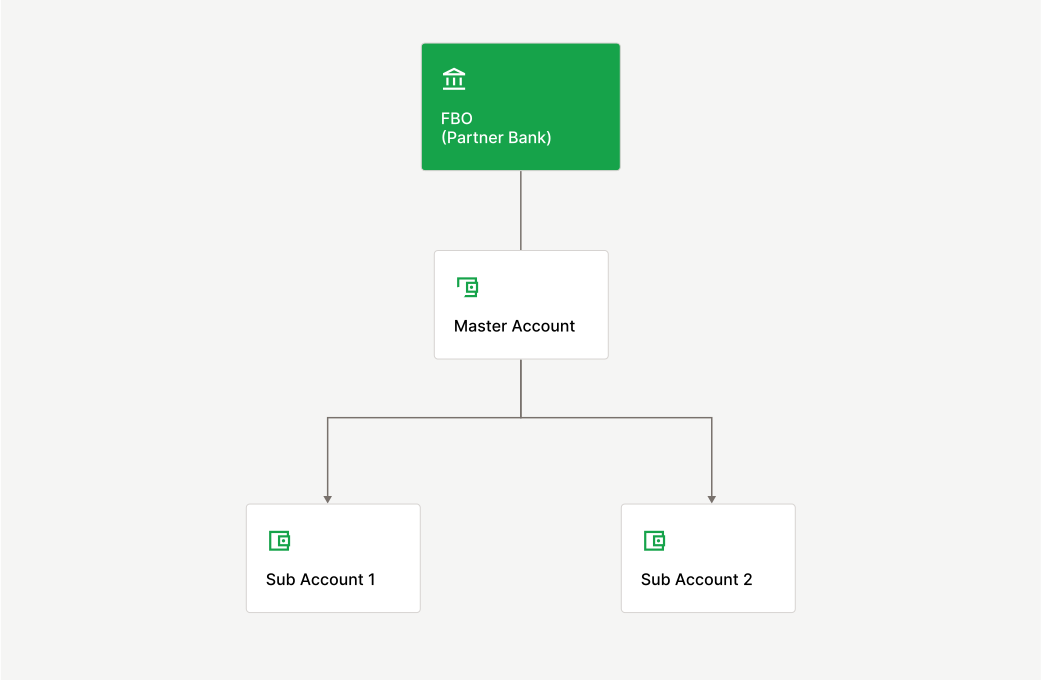
1. Master Account: The Master Account, which mirrors the FBO set up at the bank for FinTech, can only be provisioned after the Master Account Holder is created.
For more, see the [Master Accounts Guide](/accounts/master-accounts).
2. Sub Account: Sub Accounts are created under a Master Account and can be created after the Sub Account Holder is created.
For more, see the [Sub Accounts Guide](/accounts/sub-accounts).
 # Master Accounts
Source: https://docs.solidfi.com/accounts/master-accounts
A guide to Master Accounts
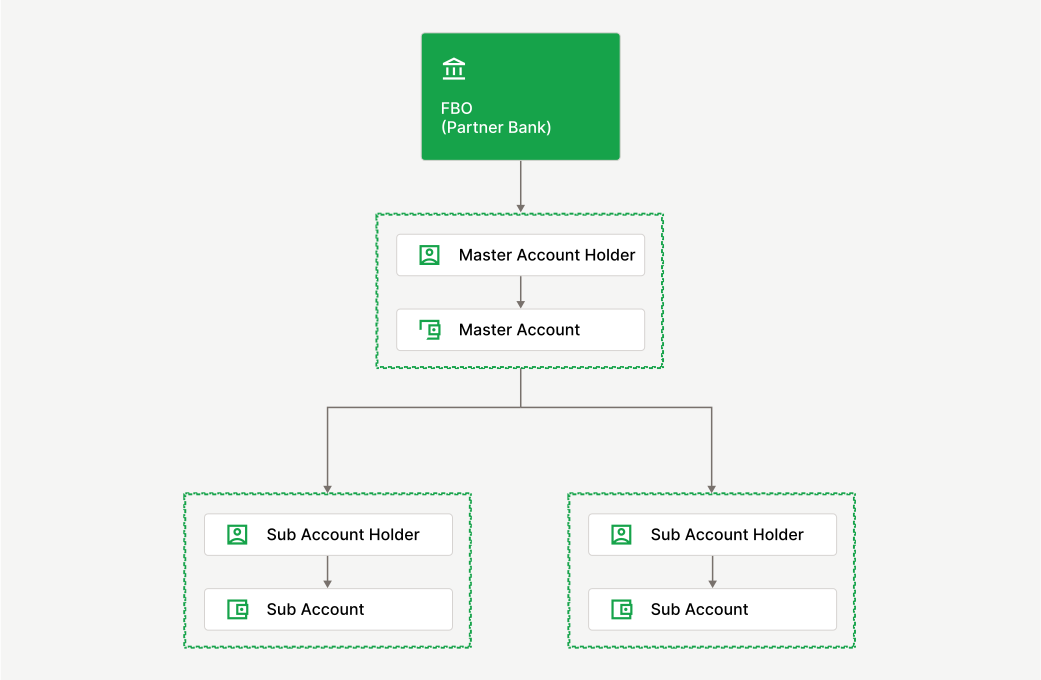
The Master Account (provisioned for FinTech) mirrors FinTech's FBO with the bank. The FBO and the Master Accounts always have the same balance and same set of credit and debit transactions.
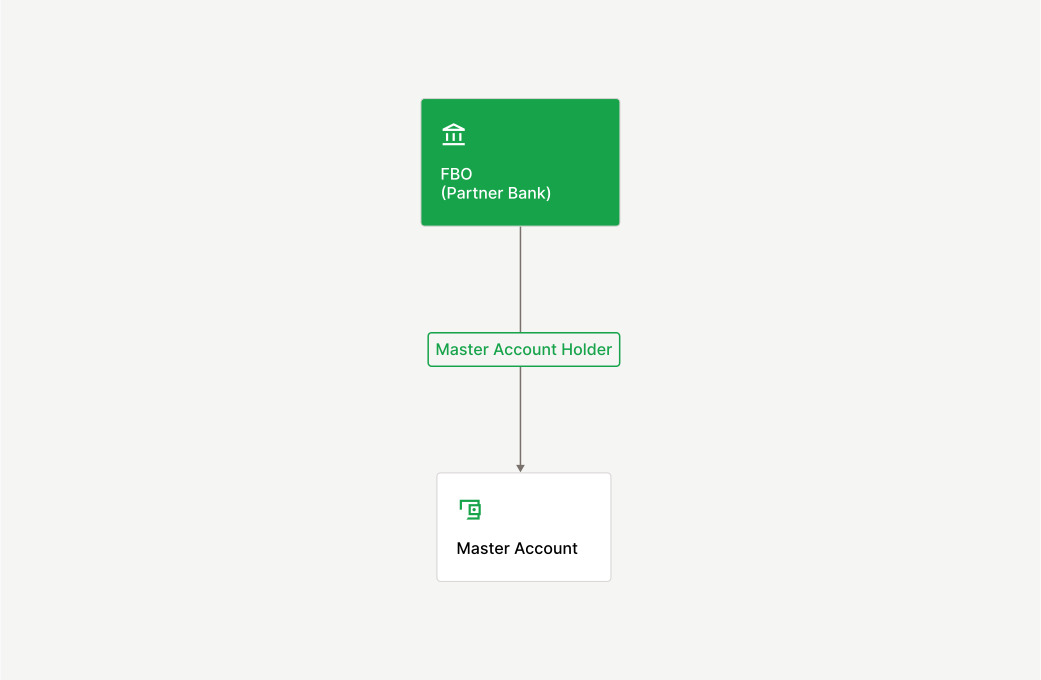
The Master Account is provisioned for the Master Account Holder, usually the FinTech. Solid provisions the Master Account at the time of onboarding and configures it to FinTech's specific needs upon the bank's approval.
In most cases, the FinTech is provisioned with a single Master Account.
# Master Accounts
Source: https://docs.solidfi.com/accounts/master-accounts
A guide to Master Accounts
The Master Account (provisioned for FinTech) mirrors FinTech's FBO with the bank. The FBO and the Master Accounts always have the same balance and same set of credit and debit transactions.
The Master Account is provisioned for the Master Account Holder, usually the FinTech. Solid provisions the Master Account at the time of onboarding and configures it to FinTech's specific needs upon the bank's approval.
In most cases, the FinTech is provisioned with a single Master Account.
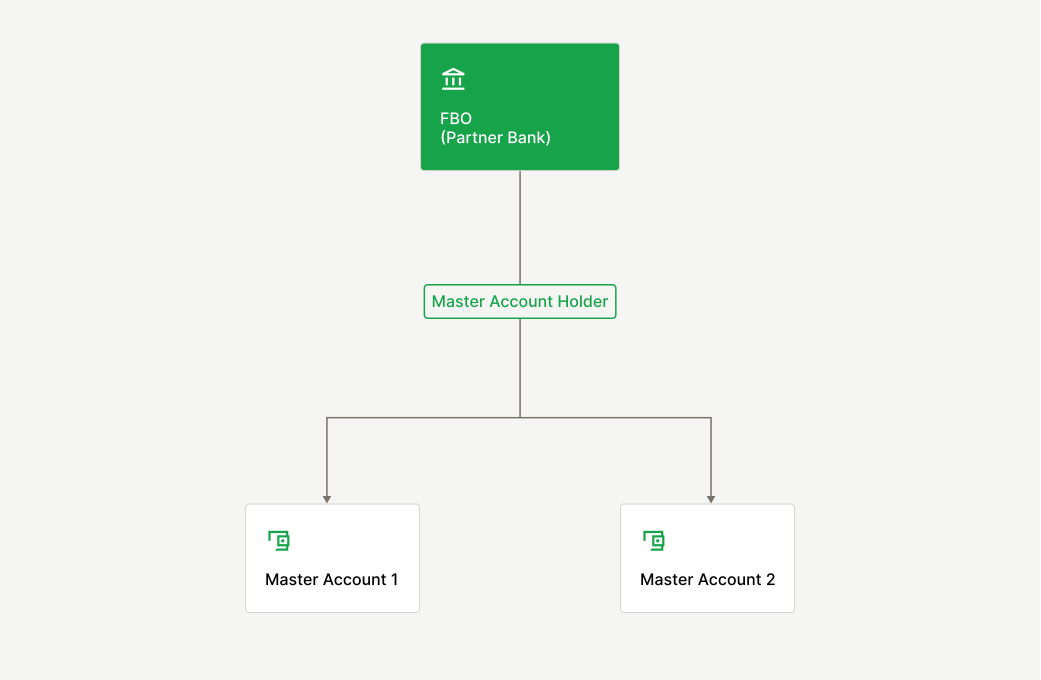
 However, in some cases, depending on the use case, the provisioning process is flexible enough to accommodate the FinTech with multiple Master Accounts that mirror a single FBO at the bank.
 Every incoming transaction that hits the FBO is first ledgered to the Master Account and then sub-ledgered to the Sub Account. The two entries of the incoming transaction (in the Master Account and Sub Accounts) are required to reconcile the transaction.
For more, see the [Reconcilation Guide](/accounts/reconciliation).
Similarly, any transaction originating from a Sub Account is first ledged on the Sub Account and then the Master Account, eventually clearing from the FBO.
Use the [Master Account API](/v2/api-reference/master-accounts/retrieve-a-master-account) designed to provide detailed information about the Master Account.
# Reconciliation
Source: https://docs.solidfi.com/accounts/reconciliation
A guide to Reconciliation
Solid v2 platform has reconciliation built-in. It ensures that all three below accounts are always in sync:
* FBO
* Master Account
* Sub Accounts
Every incoming transaction that hits the FBO is first ledgered to the Master Account and then sub-ledgered to the Sub Account. The two entries of the incoming transaction (in the Master Account and Sub Accounts) are required to reconcile the transaction.
For more, see the [Reconcilation Guide](/accounts/reconciliation).
Similarly, any transaction originating from a Sub Account is first ledged on the Sub Account and then the Master Account, eventually clearing from the FBO.
Use the [Master Account API](/v2/api-reference/master-accounts/retrieve-a-master-account) designed to provide detailed information about the Master Account.
# Reconciliation
Source: https://docs.solidfi.com/accounts/reconciliation
A guide to Reconciliation
Solid v2 platform has reconciliation built-in. It ensures that all three below accounts are always in sync:
* FBO
* Master Account
* Sub Accounts
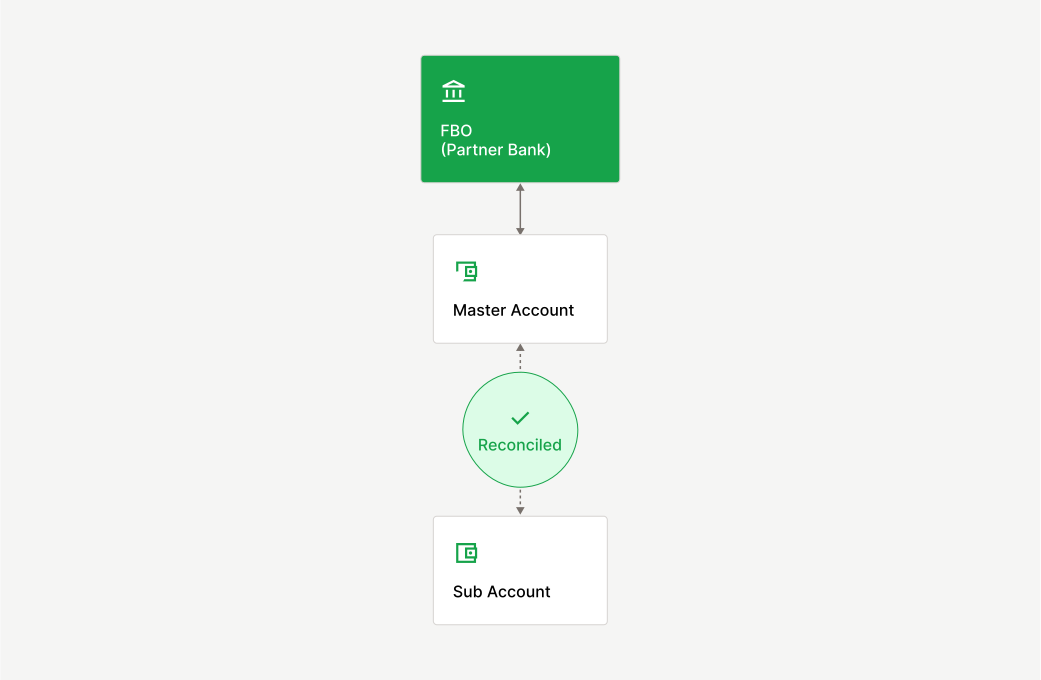 The Solid Dashboard lets you view all non-reconciled transactions in real time, informing you of the reconciliation status. Every transaction object has a reconciliation sub-object that provides the transaction's reconciliation status. If the transaction is reconciled, the sub-object has the transaction IDs in both Master and Sub Accounts. This ensures that both Master and Sub Accounts are always in sync. [Retrieve a Transaction using the API](/v2/api-reference/transactions/retrieve-a-transaction) to view the reconciliation status.
Every incoming and outgoing transaction is ledgered in the Master Account to reflect the FBO accurately. This ensures that both Master Account and FBO are always in sync.
# Sub Accounts
Source: https://docs.solidfi.com/accounts/sub-accounts
A guide to Sub Accounts
Sub Accounts are created under a Master Account. The total balance in all the Sub Accounts should match the Master Account balance. It's important to note that the Sub Account Holder owns the Sub Account, which means the funds in the Sub Account belong to the Sub Account Holder and are custodied at the bank.
Use the APIS to [Create a Sub Account Holder](/v2/api-reference/sub-account-holders/create-a-sub-account-holder) and then [Create a Sub Account](/v2/api-reference/sub-accounts/create-a-sub-account).
The Solid Dashboard lets you view all non-reconciled transactions in real time, informing you of the reconciliation status. Every transaction object has a reconciliation sub-object that provides the transaction's reconciliation status. If the transaction is reconciled, the sub-object has the transaction IDs in both Master and Sub Accounts. This ensures that both Master and Sub Accounts are always in sync. [Retrieve a Transaction using the API](/v2/api-reference/transactions/retrieve-a-transaction) to view the reconciliation status.
Every incoming and outgoing transaction is ledgered in the Master Account to reflect the FBO accurately. This ensures that both Master Account and FBO are always in sync.
# Sub Accounts
Source: https://docs.solidfi.com/accounts/sub-accounts
A guide to Sub Accounts
Sub Accounts are created under a Master Account. The total balance in all the Sub Accounts should match the Master Account balance. It's important to note that the Sub Account Holder owns the Sub Account, which means the funds in the Sub Account belong to the Sub Account Holder and are custodied at the bank.
Use the APIS to [Create a Sub Account Holder](/v2/api-reference/sub-account-holders/create-a-sub-account-holder) and then [Create a Sub Account](/v2/api-reference/sub-accounts/create-a-sub-account).
 Sub Accounts can be of three types:
* Cash
* Prepaid
* Checking
Each created Sub Account comes with a unique Sub Account ID. Sub Accounts can be configured to issue an Account Number depending on the use case. Upon the bank's approval, limits and controls at the Sub Account level are configured during onboarding.
Transactions can only be originated from a Sub Account. Every outgoing transaction makes a ledger entry first in the Sub Account and then ledgered in the Master Account to keep both Master and Sub Accounts in sync.
If the Sub Account is not issued an account number, an incoming transaction has to be sub-ledgered using the [Sub-Ledger a Transaction API](/v2/api-reference/transactions/sub-ledger-a-transaction).
# ATM
Source: https://docs.solidfi.com/card-issuance/atm
A guide to Automated Teller Machines (ATM).
Cards issued on Solid allow cash withdrawals at ATMs. The ATM feature must be enabled, the PIN must be set, and the entered PIN must match the set PIN when entering an ATM. You can also authorize or decline ATM transactions in real time.
### 1. PIN
A Card PIN, or Personal Identification Number, is a 4-digit code unique to each solid-issued card. It ensures that the cardholder is making the transaction. The Card PIN could be required at an ATM or at certain point-of-sale (POS) devices, where it must be entered to complete the transaction.
By default, the card does not have a PIN set. A new PIN can be set by calling the Set a New PIN API.
### 2. ATM Transactions
ATM PIN transactions involve the cardholder using their card to withdraw cash by verifying the transaction using a secret PIN. Here is how the process works:
1. Card Insertion: The cardholder inserts the card into the ATM's card reader,
2. PIN Entry: The cardholder enters their secret PIN on the keypad to authenticate the transaction. This is a security measure to ensure that the person using the card is the legitimate cardholder.
3. Authorization: The ATM communicates with the bank or financial institution that issued the debit card to seek transaction authorization.
4. Transaction Approval or Decline: After PIN verification, the transaction is either approved, with funds deducted from the cardholder's account or declined due to insufficient funds or other issues.
### 3. ATM Access & Locations
Solid has partnered with MoneyPass® to provide surcharge-free ATM access when a Solid issued card is used. MoneyPass® has over 37,000 ATMs nationwide to offer easy access to the funds in the associated account. The FinTech program is responsible for the MoneyPass® transaction fee (refer to the provided fee schedule).
If the Solid issued card is used at an ATM outside of the MoneyPass® network, the fee is disclosed to the end-user at the ATM before the transaction.
You can find MoneyPass® ATMs by searching your zip code on their [ATM locator website](https://www.moneypass.com/index.html). Alternatively, your end user can download the MoneyPass® ATM Locator app, available on the app store. Solid also provides a List all ATM API to list ten nearby MoneyPass® ATMs.
ATM access can be enabled or disabled for the card. By default, it is enabled ("atm\_enabled": true). When Creating a Card or Updating a Card, set "atm\_enabled": false to restrict ATM access.
# Controls
Source: https://docs.solidfi.com/card-issuance/controls
A guide to Cards Issuance Controls.
Depending on the card issuance use case, a wide range of controls can be set not at the program level but at the card level (including spend and frequency), each in full adherence to the bank's risk and compliance standards.
### 1. Program Config
Program-level controls are global, meaning every card issued in the program will have built-in controls by default. Program-level controls can be set by the program type (prepaid, debit, or credit) and the number of cards the program can issue.
Solid implementation will work closely with you, to set the card program controls, first in the sandbox, which is replicated in production.
### 2. Merchant Category Codes (MCC) Controls
You can set spending controls to allow or block transactions at specific merchant categories by setting their Merchant Category Codes (MCC). These controls are applied at the Card Level.
Allowed MCCs (Whitelist): While Creating a Card or Updating a Card, set an array of allowed MCC codes that should be allowed. The complete list is [here](https://github.com/greggles/mcc-codes/blob/main/mcc_codes.json). At the time of the transaction, if the Merchant's MCC code matches the allowed MCC code, then the transaction is approved. If not, it is declined.
Blocked MCCs (Blacklist): While Creating a Card or Updating a Card, set an array of blocked MCC codes that should not be blocked. The complete list is [here](https://github.com/greggles/mcc-codes/blob/main/mcc_codes.json). At the time of the transaction, if the Merchant's MCC code matches the blocked MCC code, then the transaction is not approved. If not, it is approved.
For a card, you can only set allowedCategories or blockedCategories. You can't set both at the same time.
### 3. Merchant Name Controls
You can set spending controls to allow or block transactions at specific merchants. These controls are applied at the Card Level.
Allowed Merchants (Whitelist): While creating or updating a card, set an array of allowed Merchants that should be allowed. At the time of the transaction, if the Merchant matches the allowed Merchant, then the transaction is approved. If not, it is declined.
Blocked MCCs (Blacklist): While creating or updating a card, set an array of blocked Merchants that should be blocked. At the time of the transaction, if the Merchant matches the blocked Merchant, then the transaction is declined. If not, it is approved.
For a card, you can only set allowedMerchants or blockedMerchants. You can't set both at the same time.
### 4. Real Time Authorization (RTA)
Solid's Card Issuing supports Real-Time Authorization (RTA) of card transactions, which means that using Card RTA Webhooks, you can approve or decline authorization requests in real-time.
Here is how it works:
1. In the Solid Dashboard, (in Card Config) configure the RTA webhook endpoint for your program.
2. When a Solid issued card on your program makes a purchase, you must approve or decline each Authorization.
If Solid does not receive your approve or decline request within 2 seconds, the Authorization is automatically approved or declined based on your Stand-In Processing (STIP) settings.
# Introduction
Source: https://docs.solidfi.com/card-issuance/introduction
An introduction to Card Issuance.
You can use Solid card issuance to issue and manage cards for your card program – prepaid, debit, or credit, for both consumers and businesses.
Solid fully supports every detail of your card program, from card art to issuing cards programmatically (or via Dashboard) to managing the lifecycle of a card transaction.
You can issue cards to cardholders and link the card to the sub-accounts. You can also set up granular controls and authorize or decline transactions in real-time.
# Physical Card
Source: https://docs.solidfi.com/card-issuance/physical-card
A guide to Physical Cards
Solid offers its clients a fully managed card-art program. That means Solid manages the physical card approval with the issuing bank, network, and card printer.
### 1. Card Art
Solid has put together simple templates & guidelines for the card program to follow for the Front of Card (FOC) design to simplify the process and get the required approval.
When customizing a card for your card program, you have the option to choose between a horizontal or a vertical card. All our cards are Dual Interface (DI), which means they have a single embedded chip. This unique feature allows the card to be used in both contact and contactless transactions, providing flexibility and convenience to your users.
The instructions below explain the Front of Card (FOC) and Back of Card (BOC) template and the customization available to meet your brand guidelines.
1. Start with a blank Horizontal Card
Sub Accounts can be of three types:
* Cash
* Prepaid
* Checking
Each created Sub Account comes with a unique Sub Account ID. Sub Accounts can be configured to issue an Account Number depending on the use case. Upon the bank's approval, limits and controls at the Sub Account level are configured during onboarding.
Transactions can only be originated from a Sub Account. Every outgoing transaction makes a ledger entry first in the Sub Account and then ledgered in the Master Account to keep both Master and Sub Accounts in sync.
If the Sub Account is not issued an account number, an incoming transaction has to be sub-ledgered using the [Sub-Ledger a Transaction API](/v2/api-reference/transactions/sub-ledger-a-transaction).
# ATM
Source: https://docs.solidfi.com/card-issuance/atm
A guide to Automated Teller Machines (ATM).
Cards issued on Solid allow cash withdrawals at ATMs. The ATM feature must be enabled, the PIN must be set, and the entered PIN must match the set PIN when entering an ATM. You can also authorize or decline ATM transactions in real time.
### 1. PIN
A Card PIN, or Personal Identification Number, is a 4-digit code unique to each solid-issued card. It ensures that the cardholder is making the transaction. The Card PIN could be required at an ATM or at certain point-of-sale (POS) devices, where it must be entered to complete the transaction.
By default, the card does not have a PIN set. A new PIN can be set by calling the Set a New PIN API.
### 2. ATM Transactions
ATM PIN transactions involve the cardholder using their card to withdraw cash by verifying the transaction using a secret PIN. Here is how the process works:
1. Card Insertion: The cardholder inserts the card into the ATM's card reader,
2. PIN Entry: The cardholder enters their secret PIN on the keypad to authenticate the transaction. This is a security measure to ensure that the person using the card is the legitimate cardholder.
3. Authorization: The ATM communicates with the bank or financial institution that issued the debit card to seek transaction authorization.
4. Transaction Approval or Decline: After PIN verification, the transaction is either approved, with funds deducted from the cardholder's account or declined due to insufficient funds or other issues.
### 3. ATM Access & Locations
Solid has partnered with MoneyPass® to provide surcharge-free ATM access when a Solid issued card is used. MoneyPass® has over 37,000 ATMs nationwide to offer easy access to the funds in the associated account. The FinTech program is responsible for the MoneyPass® transaction fee (refer to the provided fee schedule).
If the Solid issued card is used at an ATM outside of the MoneyPass® network, the fee is disclosed to the end-user at the ATM before the transaction.
You can find MoneyPass® ATMs by searching your zip code on their [ATM locator website](https://www.moneypass.com/index.html). Alternatively, your end user can download the MoneyPass® ATM Locator app, available on the app store. Solid also provides a List all ATM API to list ten nearby MoneyPass® ATMs.
ATM access can be enabled or disabled for the card. By default, it is enabled ("atm\_enabled": true). When Creating a Card or Updating a Card, set "atm\_enabled": false to restrict ATM access.
# Controls
Source: https://docs.solidfi.com/card-issuance/controls
A guide to Cards Issuance Controls.
Depending on the card issuance use case, a wide range of controls can be set not at the program level but at the card level (including spend and frequency), each in full adherence to the bank's risk and compliance standards.
### 1. Program Config
Program-level controls are global, meaning every card issued in the program will have built-in controls by default. Program-level controls can be set by the program type (prepaid, debit, or credit) and the number of cards the program can issue.
Solid implementation will work closely with you, to set the card program controls, first in the sandbox, which is replicated in production.
### 2. Merchant Category Codes (MCC) Controls
You can set spending controls to allow or block transactions at specific merchant categories by setting their Merchant Category Codes (MCC). These controls are applied at the Card Level.
Allowed MCCs (Whitelist): While Creating a Card or Updating a Card, set an array of allowed MCC codes that should be allowed. The complete list is [here](https://github.com/greggles/mcc-codes/blob/main/mcc_codes.json). At the time of the transaction, if the Merchant's MCC code matches the allowed MCC code, then the transaction is approved. If not, it is declined.
Blocked MCCs (Blacklist): While Creating a Card or Updating a Card, set an array of blocked MCC codes that should not be blocked. The complete list is [here](https://github.com/greggles/mcc-codes/blob/main/mcc_codes.json). At the time of the transaction, if the Merchant's MCC code matches the blocked MCC code, then the transaction is not approved. If not, it is approved.
For a card, you can only set allowedCategories or blockedCategories. You can't set both at the same time.
### 3. Merchant Name Controls
You can set spending controls to allow or block transactions at specific merchants. These controls are applied at the Card Level.
Allowed Merchants (Whitelist): While creating or updating a card, set an array of allowed Merchants that should be allowed. At the time of the transaction, if the Merchant matches the allowed Merchant, then the transaction is approved. If not, it is declined.
Blocked MCCs (Blacklist): While creating or updating a card, set an array of blocked Merchants that should be blocked. At the time of the transaction, if the Merchant matches the blocked Merchant, then the transaction is declined. If not, it is approved.
For a card, you can only set allowedMerchants or blockedMerchants. You can't set both at the same time.
### 4. Real Time Authorization (RTA)
Solid's Card Issuing supports Real-Time Authorization (RTA) of card transactions, which means that using Card RTA Webhooks, you can approve or decline authorization requests in real-time.
Here is how it works:
1. In the Solid Dashboard, (in Card Config) configure the RTA webhook endpoint for your program.
2. When a Solid issued card on your program makes a purchase, you must approve or decline each Authorization.
If Solid does not receive your approve or decline request within 2 seconds, the Authorization is automatically approved or declined based on your Stand-In Processing (STIP) settings.
# Introduction
Source: https://docs.solidfi.com/card-issuance/introduction
An introduction to Card Issuance.
You can use Solid card issuance to issue and manage cards for your card program – prepaid, debit, or credit, for both consumers and businesses.
Solid fully supports every detail of your card program, from card art to issuing cards programmatically (or via Dashboard) to managing the lifecycle of a card transaction.
You can issue cards to cardholders and link the card to the sub-accounts. You can also set up granular controls and authorize or decline transactions in real-time.
# Physical Card
Source: https://docs.solidfi.com/card-issuance/physical-card
A guide to Physical Cards
Solid offers its clients a fully managed card-art program. That means Solid manages the physical card approval with the issuing bank, network, and card printer.
### 1. Card Art
Solid has put together simple templates & guidelines for the card program to follow for the Front of Card (FOC) design to simplify the process and get the required approval.
When customizing a card for your card program, you have the option to choose between a horizontal or a vertical card. All our cards are Dual Interface (DI), which means they have a single embedded chip. This unique feature allows the card to be used in both contact and contactless transactions, providing flexibility and convenience to your users.
The instructions below explain the Front of Card (FOC) and Back of Card (BOC) template and the customization available to meet your brand guidelines.
1. Start with a blank Horizontal Card
 On a Consumer Debit Card, Visa product identifier will display Debit under the Visa logo.
On a Business Debit Card, Business Debit will display on the top left.
2\. Apply your brand's visual design and logo
On a Consumer Debit Card, Visa product identifier will display Debit under the Visa logo.
On a Business Debit Card, Business Debit will display on the top left.
2\. Apply your brand's visual design and logo
 Depending on the card's visual design (dark or light), Solid will setup the correct Visa logo (Blue, White or Black). Logo needs to contrast the card design (background).
1. Start with a blank Vertical Card
Depending on the card's visual design (dark or light), Solid will setup the correct Visa logo (Blue, White or Black). Logo needs to contrast the card design (background).
1. Start with a blank Vertical Card
 On a Consumer Debit Card, Visa product identifier will display Debit under the Visa logo.
On a Business Debit Card, Business Debit will display on the top left.
2\. Apply your brand's visual design and logo
On a Consumer Debit Card, Visa product identifier will display Debit under the Visa logo.
On a Business Debit Card, Business Debit will display on the top left.
2\. Apply your brand's visual design and logo
 Depending on the card's visual design (dark or light), Solid will setup the correct Visa logo (Blue, White or Black). Logo needs to contrast the card design (background).
Back of the card displays your card's visual design with the card information.
Depending on the card's visual design (dark or light), Solid will setup the correct Visa logo (Blue, White or Black). Logo needs to contrast the card design (background).
Back of the card displays your card's visual design with the card information.
 * Name of the business (for example: SNACKCO DELIVERY LLC) is displayed only if the card is a Business Debit or Business Credit card.
* BOC remains the same in case of horizontal or vertical card.
* BOC follows the Visa Quick Read (QR) Design to display the card information (16 digit cad number, expiry and CVV)
* If the card's visual design (background) is dark, text is in displayed in white. If the card's visual design (background) is light, text is in displayed in black.
* Name of the person and business to be embossed on the card, max limit is 23 characters.
You can download the cart art template's Figma file [here](https://www.figma.com/file/cwxnEXJtFIalnq96UCefSj/Card-Art-Template?node-id=0%3A1). Then, you can customize your card art using the Figma app or your web browser, export it to an SVG file, and send it back to Solid. Alternatively, you can send back your .fig file.
For physical cards, the printer will ultimately use EPS format with CMYK colors (Solid handles the formatting), so ideally, you would proof your colors in a design program such as Adobe Illustrator and export an EPS file from there.
### 2. Mailer Art
Solid manages the production of the physical card mailer with the card printer. The mailer is a 5x7 inch bi-fold greeting card style. See mock-ups below.
* Name of the business (for example: SNACKCO DELIVERY LLC) is displayed only if the card is a Business Debit or Business Credit card.
* BOC remains the same in case of horizontal or vertical card.
* BOC follows the Visa Quick Read (QR) Design to display the card information (16 digit cad number, expiry and CVV)
* If the card's visual design (background) is dark, text is in displayed in white. If the card's visual design (background) is light, text is in displayed in black.
* Name of the person and business to be embossed on the card, max limit is 23 characters.
You can download the cart art template's Figma file [here](https://www.figma.com/file/cwxnEXJtFIalnq96UCefSj/Card-Art-Template?node-id=0%3A1). Then, you can customize your card art using the Figma app or your web browser, export it to an SVG file, and send it back to Solid. Alternatively, you can send back your .fig file.
For physical cards, the printer will ultimately use EPS format with CMYK colors (Solid handles the formatting), so ideally, you would proof your colors in a design program such as Adobe Illustrator and export an EPS file from there.
### 2. Mailer Art
Solid manages the production of the physical card mailer with the card printer. The mailer is a 5x7 inch bi-fold greeting card style. See mock-ups below.


 Note:
* Both inside and outside pages can display your visual design.
* Card location cannot be changed.
* You can provide your copy for all the pages including card activation.
* The mailer cannot be customized for each cardholder.
You can download the mailer art template's Figma file [here](https://www.figma.com/file/cwxnEXJtFIalnq96UCefSj/Card-Art-Template?node-id=2%3A436). Then, you can customize your mailer art using the Figma app or your web browser, export it to an SVG file, and send it back to Solid. Alternatively, you can send back your .fig file.
### 3. Timelines
When issuing physical cards, timing is essential, but quality is even more so. Here are the key details you need to know:
* We will collaborate closely with you during the approximately two weeks it takes to configure your artwork. It ensures that all the necessary details are in place and your design looks exactly how you want it to.
* Once the artwork has been finalized, we will begin the printing process. Depending on the size of your order and our current workload, this typically takes around two days to complete.
* Finally, shipping times will vary based on the method you have selected. We offer a range of shipping options to meet your needs, from standard delivery to expedited shipping for those needing cards as quickly as possible.
By carefully managing each step of the process, we can ensure that your cards are delivered on time and with the highest quality.
### 4. Support
To comply with the issuing bank's requirements, you must provide support information to your cardholders, which needs to be included on the back of physical cards.
### 5. Reissuing Cards
You can [Reissue a Card](/v2/api-reference/cards/reissue-a-card) if your end user informs you that it is misplaced, lost, or stolen. Solid does not cover the cost of reissued cards for such scenarios.
If the card arrives damaged, you must request that your end user send photo evidence of the damage. Solid will contact its fulfillment partners for an explanation. In some cases, they may grant a credit. This credit is likely to cover shipping issues (resulting in a shipping credit), but it's possible that it could also cover printing issues (printing credit).
Please note that damaged cards are reviewed case by case and are not guaranteed. If a credit is received, it can be deducted from the program's next invoice. As usual, the program should submit a ticket for any such cases.
### 6. Multiple Card Designs (Themes)
Solid offers a feature called Solid Card Themes, which enables you to manage multiple card types and artwork within a single program.
For example, you could offer a single product that allows end users to choose a white or black card. Alternatively, you could use this feature to offer multiple financial products within a single program, such as Brand X Card and Brand Y Card.
Solid implementation team sets up themes in conjunction with your card program needs. Every card in the program will be assigned a unique theme, and each theme requires the artwork to be set up.
Once the Solid Solutions team has set up all card themes, they will provide you with the necessary information about the possible theme values, ensuring your confidence in the process.
You pass the theme in the [Create a Card](/v2/api-reference/cards/create-a-card) API.
# Virtual Card
Source: https://docs.solidfi.com/card-issuance/virtual-card
A guide to Virtual Cards.
Solid offers its clients a fully managed card-art program. That means Solid manages the virtual card approval with the issuing bank and the network.
You can download the virtual cart art template's Figma file [here](https://www.figma.com/file/cwxnEXJtFIalnq96UCefSj/Card-Art-Template?node-id=0%3A1).
You must follow the Front of Card (FOC) design to simplify the process and get the required approval.
When customizing a card for your card program, you can display a horizontal or vertical virtual card, allowing for creative design choices.
Unlike a Physical Card that has both Front of Card (FOC) and Back of Card (BOC) designs, Virtual Card has only Front of Card (FOC).
The instructions below explain the Virtual Card Front of Card (FOC) template and the customization available to meet the brand guidelines of the FinTech Program.
1. Start with a blank Horizontal Card
2. Apply your brand's visual design and logo
3. Display the VISA product identifier:
* Consumer Debit: Display Debit under the Visa logo.
* Business Debit: Display Business Debit under the Visa logo.
* Consumer Credit: Display the Visa logo as-is. No product identifier needed.
* Business Credit: Display Business under the Visa logo.
4. Display the card information (16 digit card info, expiration date, CVV, Cardholder Name, Business Name, if a Business Card). VISA also requires Virtual Limited Use to be mentioned on the Front of Card (FOC).
Note:
* Both inside and outside pages can display your visual design.
* Card location cannot be changed.
* You can provide your copy for all the pages including card activation.
* The mailer cannot be customized for each cardholder.
You can download the mailer art template's Figma file [here](https://www.figma.com/file/cwxnEXJtFIalnq96UCefSj/Card-Art-Template?node-id=2%3A436). Then, you can customize your mailer art using the Figma app or your web browser, export it to an SVG file, and send it back to Solid. Alternatively, you can send back your .fig file.
### 3. Timelines
When issuing physical cards, timing is essential, but quality is even more so. Here are the key details you need to know:
* We will collaborate closely with you during the approximately two weeks it takes to configure your artwork. It ensures that all the necessary details are in place and your design looks exactly how you want it to.
* Once the artwork has been finalized, we will begin the printing process. Depending on the size of your order and our current workload, this typically takes around two days to complete.
* Finally, shipping times will vary based on the method you have selected. We offer a range of shipping options to meet your needs, from standard delivery to expedited shipping for those needing cards as quickly as possible.
By carefully managing each step of the process, we can ensure that your cards are delivered on time and with the highest quality.
### 4. Support
To comply with the issuing bank's requirements, you must provide support information to your cardholders, which needs to be included on the back of physical cards.
### 5. Reissuing Cards
You can [Reissue a Card](/v2/api-reference/cards/reissue-a-card) if your end user informs you that it is misplaced, lost, or stolen. Solid does not cover the cost of reissued cards for such scenarios.
If the card arrives damaged, you must request that your end user send photo evidence of the damage. Solid will contact its fulfillment partners for an explanation. In some cases, they may grant a credit. This credit is likely to cover shipping issues (resulting in a shipping credit), but it's possible that it could also cover printing issues (printing credit).
Please note that damaged cards are reviewed case by case and are not guaranteed. If a credit is received, it can be deducted from the program's next invoice. As usual, the program should submit a ticket for any such cases.
### 6. Multiple Card Designs (Themes)
Solid offers a feature called Solid Card Themes, which enables you to manage multiple card types and artwork within a single program.
For example, you could offer a single product that allows end users to choose a white or black card. Alternatively, you could use this feature to offer multiple financial products within a single program, such as Brand X Card and Brand Y Card.
Solid implementation team sets up themes in conjunction with your card program needs. Every card in the program will be assigned a unique theme, and each theme requires the artwork to be set up.
Once the Solid Solutions team has set up all card themes, they will provide you with the necessary information about the possible theme values, ensuring your confidence in the process.
You pass the theme in the [Create a Card](/v2/api-reference/cards/create-a-card) API.
# Virtual Card
Source: https://docs.solidfi.com/card-issuance/virtual-card
A guide to Virtual Cards.
Solid offers its clients a fully managed card-art program. That means Solid manages the virtual card approval with the issuing bank and the network.
You can download the virtual cart art template's Figma file [here](https://www.figma.com/file/cwxnEXJtFIalnq96UCefSj/Card-Art-Template?node-id=0%3A1).
You must follow the Front of Card (FOC) design to simplify the process and get the required approval.
When customizing a card for your card program, you can display a horizontal or vertical virtual card, allowing for creative design choices.
Unlike a Physical Card that has both Front of Card (FOC) and Back of Card (BOC) designs, Virtual Card has only Front of Card (FOC).
The instructions below explain the Virtual Card Front of Card (FOC) template and the customization available to meet the brand guidelines of the FinTech Program.
1. Start with a blank Horizontal Card
2. Apply your brand's visual design and logo
3. Display the VISA product identifier:
* Consumer Debit: Display Debit under the Visa logo.
* Business Debit: Display Business Debit under the Visa logo.
* Consumer Credit: Display the Visa logo as-is. No product identifier needed.
* Business Credit: Display Business under the Visa logo.
4. Display the card information (16 digit card info, expiration date, CVV, Cardholder Name, Business Name, if a Business Card). VISA also requires Virtual Limited Use to be mentioned on the Front of Card (FOC).
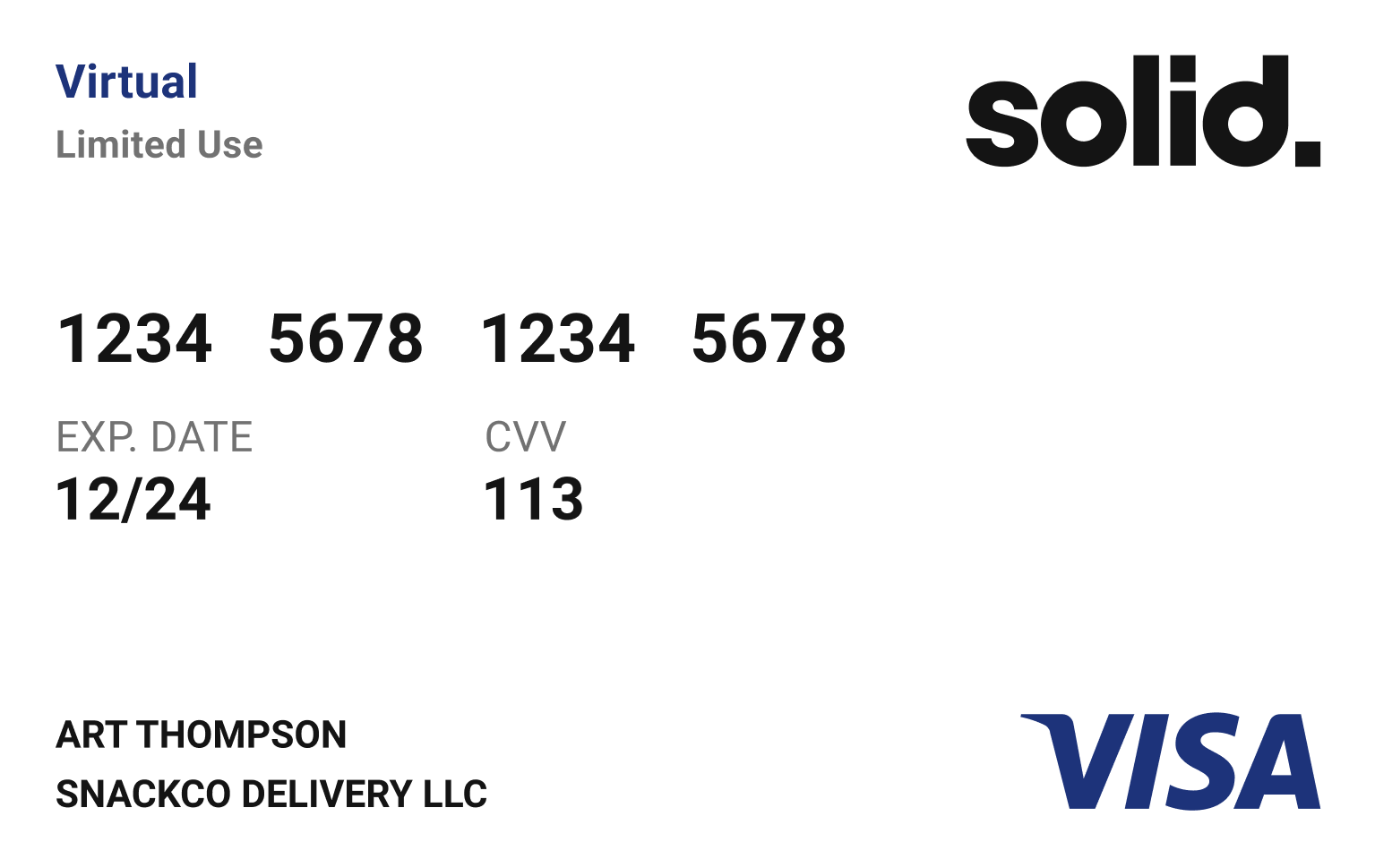 Depending on the card's visual design (dark or light), use the appropriate Visa logo (Blue, White, or Black). Your brand logo needs to contrast the card design (background).
# Wallet
Source: https://docs.solidfi.com/card-issuance/wallet
A guide to Wallets.
Solid Issuing allows your end to add cards to wallets such as Apple Pay, Google Pay and Samsung Pay.
Solid offers its clients a fully managed card-art program. That means Solid manages the wallet approval with the issuing bank and the network.
You can download the wallet cart art template's Figma file [here](https://www.figma.com/file/cwxnEXJtFIalnq96UCefSj/Card-Art-Template?node-id=0%3A1).
You must follow the Front of Card (FOC) design to simplify the process and get the required approval.
Unlike a Physical Card that has both Front of Card (FOC) and Back of Card (BOC) designs, Wallet Card has only Front of Card (FOC). The orientation of the card should be in landscape mode.
The instructions below explain the Wallet Front of Card (FOC) template and the customization available to meet the brand guidelines of the card program.
1. Start with a blank Horizontal Card
2. Apply your brand's visual design and logo
3. Display the VISA product identifier:
* Consumer Debit: Display Debit under the Visa logo.
* Business Debit: Display Business Debit under the Visa logo.
* Consumer Credit: Display the Visa logo as-is. No product identifier needed.
* Business Credit: Display Business under the Visa logo.
4. Solid will register the card art with Visa, Apple Pay, Google Pay, Samsung Pay to display the last four of the card number at the bottom left.
Solid implementation team sets up your brand's card metadata, like images, terms and conditions, and other relevant information needed during card provisioning the card on an end user's wallet (Apple Pay, Google Pay, Samsung Pay).
Depending on the card's visual design (dark or light), use the appropriate Visa logo (Blue, White, or Black). Your brand logo needs to contrast the card design (background).
# Account Holders
Source: https://docs.solidfi.com/general/account-holders
A guide to Account Holders
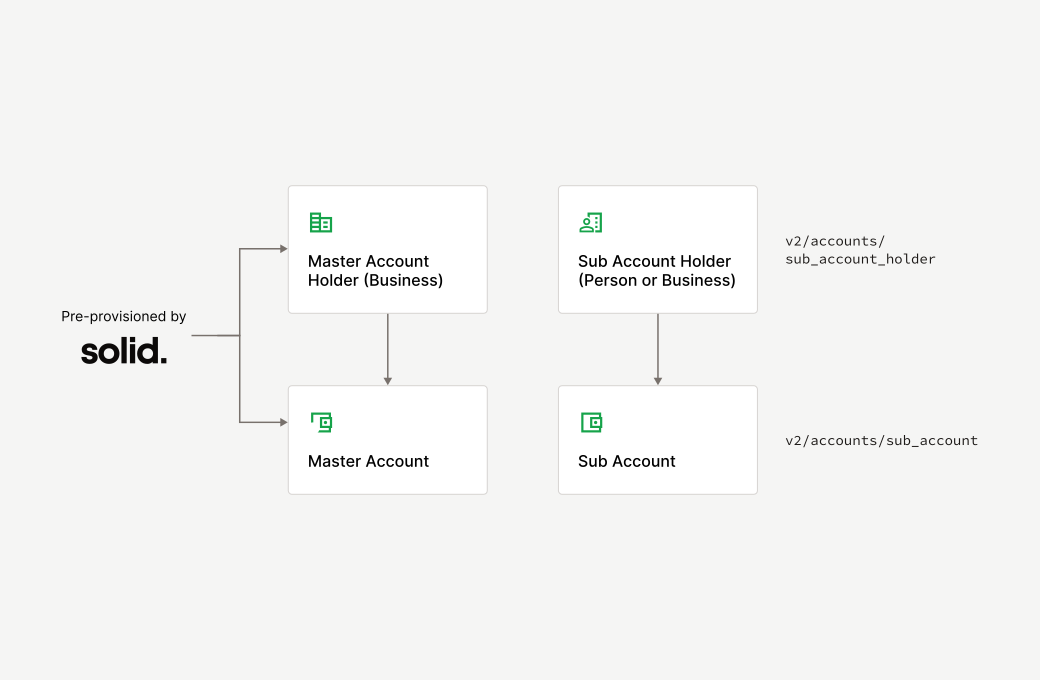
The account holder is a person or business that owns the account. The account holder needs to be fully verified as per the bank's CIP requirement before creating an account for the account holder.
There are two types of account holders.
1. Master Account Holder: The master account holder, typically a business and often the FinTech itself, is the entity that owns the master account. This role is of significant importance as the master account holder and the master account are provisioned by Solid at the time of onboarding, tailored to the specific needs of FinTech. For more details, refer to the [Master Accounts Guide](/accounts/master-accounts).
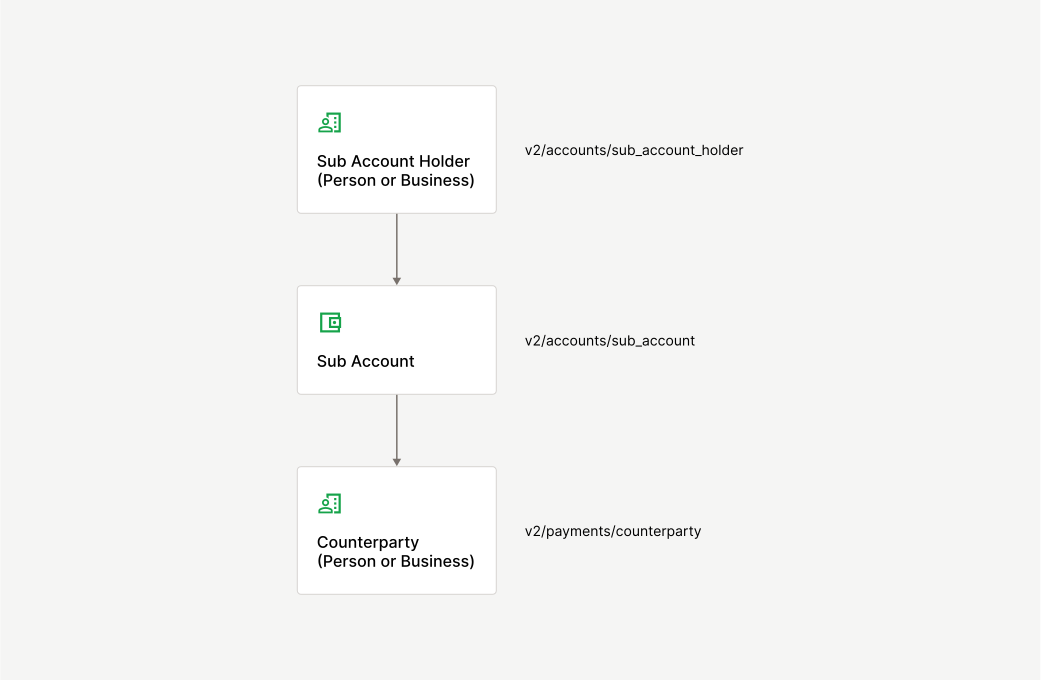
2. Sub Account Holder: The sub account holder can be a person or a business, depending on the FinTech's use case. The sub account holder owns the sub account and the funds in it. FinTechs can create both a sub account holder and sub account using Solid APIs.
* Create a [Sub Account Holder API](/v2/api-reference/sub-account-holders/create-a-sub-account-holder)
* Create a [Sub Account API](/v2/api-reference/sub-accounts/create-a-sub-account)
For more, see the [Sub Accounts Guide](/accounts/sub-accounts).
Depending on the card's visual design (dark or light), use the appropriate Visa logo (Blue, White, or Black). Your brand logo needs to contrast the card design (background).
# Wallet
Source: https://docs.solidfi.com/card-issuance/wallet
A guide to Wallets.
Solid Issuing allows your end to add cards to wallets such as Apple Pay, Google Pay and Samsung Pay.
Solid offers its clients a fully managed card-art program. That means Solid manages the wallet approval with the issuing bank and the network.
You can download the wallet cart art template's Figma file [here](https://www.figma.com/file/cwxnEXJtFIalnq96UCefSj/Card-Art-Template?node-id=0%3A1).
You must follow the Front of Card (FOC) design to simplify the process and get the required approval.
Unlike a Physical Card that has both Front of Card (FOC) and Back of Card (BOC) designs, Wallet Card has only Front of Card (FOC). The orientation of the card should be in landscape mode.
The instructions below explain the Wallet Front of Card (FOC) template and the customization available to meet the brand guidelines of the card program.
1. Start with a blank Horizontal Card
2. Apply your brand's visual design and logo
3. Display the VISA product identifier:
* Consumer Debit: Display Debit under the Visa logo.
* Business Debit: Display Business Debit under the Visa logo.
* Consumer Credit: Display the Visa logo as-is. No product identifier needed.
* Business Credit: Display Business under the Visa logo.
4. Solid will register the card art with Visa, Apple Pay, Google Pay, Samsung Pay to display the last four of the card number at the bottom left.
Solid implementation team sets up your brand's card metadata, like images, terms and conditions, and other relevant information needed during card provisioning the card on an end user's wallet (Apple Pay, Google Pay, Samsung Pay).
Depending on the card's visual design (dark or light), use the appropriate Visa logo (Blue, White, or Black). Your brand logo needs to contrast the card design (background).
# Account Holders
Source: https://docs.solidfi.com/general/account-holders
A guide to Account Holders
The account holder is a person or business that owns the account. The account holder needs to be fully verified as per the bank's CIP requirement before creating an account for the account holder.
There are two types of account holders.
1. Master Account Holder: The master account holder, typically a business and often the FinTech itself, is the entity that owns the master account. This role is of significant importance as the master account holder and the master account are provisioned by Solid at the time of onboarding, tailored to the specific needs of FinTech. For more details, refer to the [Master Accounts Guide](/accounts/master-accounts).
2. Sub Account Holder: The sub account holder can be a person or a business, depending on the FinTech's use case. The sub account holder owns the sub account and the funds in it. FinTechs can create both a sub account holder and sub account using Solid APIs.
* Create a [Sub Account Holder API](/v2/api-reference/sub-account-holders/create-a-sub-account-holder)
* Create a [Sub Account API](/v2/api-reference/sub-accounts/create-a-sub-account)
For more, see the [Sub Accounts Guide](/accounts/sub-accounts).
 # Card Holders
Source: https://docs.solidfi.com/general/card-holders
A guide to Card Holders
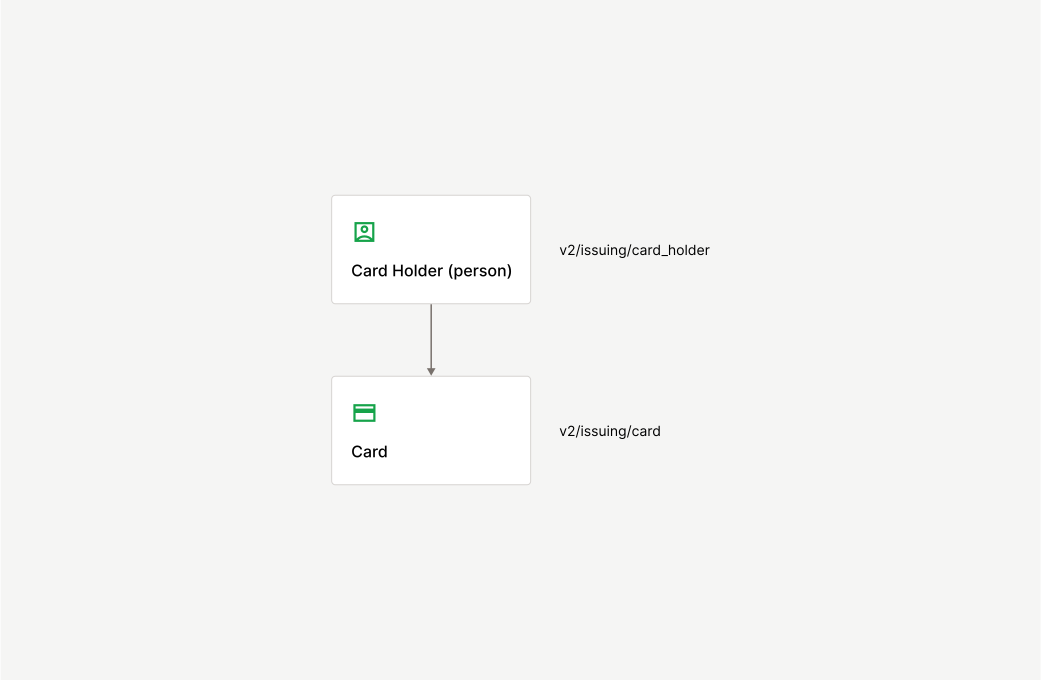
The card holder, a person authorized to use the card, can only be issued a card after successfully passing the necessary OFAC check. This check and other checks (as mandated by the bank per the CIP requirements) are essential in screening and verifying the card holder.
The platform allows for flexibility in the types of card holders, depending on the type of card issued. This adaptability caters to various account holder needs and enhances the user experience.
For example
* In the case of a business spend card, the business is the account holder, and the cardholder is the person(employee) who is authorized to use the business spend card.
* In the case of a teen card, the parent is the account holder, and the card holder is the child who is authorized to use the card.
* In a typical personal checking account and debit card setup, the account holder is also the card holder.
FinTechs can create both card holder and cards using Solid APIs:
* [Create a Card Holder API](/v2/api-reference/card-holders/create-a-card-holder)
* [Create a Card API](/v2/api-reference/cards/create-a-card)
For more, see the [Card Issuance Guide](/card-issuance/introduction).
# Card Holders
Source: https://docs.solidfi.com/general/card-holders
A guide to Card Holders
The card holder, a person authorized to use the card, can only be issued a card after successfully passing the necessary OFAC check. This check and other checks (as mandated by the bank per the CIP requirements) are essential in screening and verifying the card holder.
The platform allows for flexibility in the types of card holders, depending on the type of card issued. This adaptability caters to various account holder needs and enhances the user experience.
For example
* In the case of a business spend card, the business is the account holder, and the cardholder is the person(employee) who is authorized to use the business spend card.
* In the case of a teen card, the parent is the account holder, and the card holder is the child who is authorized to use the card.
* In a typical personal checking account and debit card setup, the account holder is also the card holder.
FinTechs can create both card holder and cards using Solid APIs:
* [Create a Card Holder API](/v2/api-reference/card-holders/create-a-card-holder)
* [Create a Card API](/v2/api-reference/cards/create-a-card)
For more, see the [Card Issuance Guide](/card-issuance/introduction).
 # Counterparties
Source: https://docs.solidfi.com/general/counterparties
A guide to Counterparties
A counterparty is a person or business that is the other party participating in a financial transaction. Before originating a transaction, the counterparty must pass the OFAC check. Other checks (as mandated by the bank per the CIP requirements) are essential in screening and verifying the counterparty before originating a transaction.
Every transaction originating from a sub account requires a counterparty ID, which identifies the other party. FinTechs can create a counterparty using the [Create a Counterparty API](/v2/api-reference/counterparties/create-a-counterparty).
Since the end user can make multiple transactions with the same counterparty using various form factors, the counterparty object can capture information related to different form factors, such as ACH, Wire, Check, FedNow, and RTP, providing a complete transaction history with the counterparty.
For more, see the [Payments Guide](/payments/introduction).
# Counterparties
Source: https://docs.solidfi.com/general/counterparties
A guide to Counterparties
A counterparty is a person or business that is the other party participating in a financial transaction. Before originating a transaction, the counterparty must pass the OFAC check. Other checks (as mandated by the bank per the CIP requirements) are essential in screening and verifying the counterparty before originating a transaction.
Every transaction originating from a sub account requires a counterparty ID, which identifies the other party. FinTechs can create a counterparty using the [Create a Counterparty API](/v2/api-reference/counterparties/create-a-counterparty).
Since the end user can make multiple transactions with the same counterparty using various form factors, the counterparty object can capture information related to different form factors, such as ACH, Wire, Check, FedNow, and RTP, providing a complete transaction history with the counterparty.
For more, see the [Payments Guide](/payments/introduction).
 # Flow of Funds
Source: https://docs.solidfi.com/general/flow-of-funds
A guide to Flow of Funds
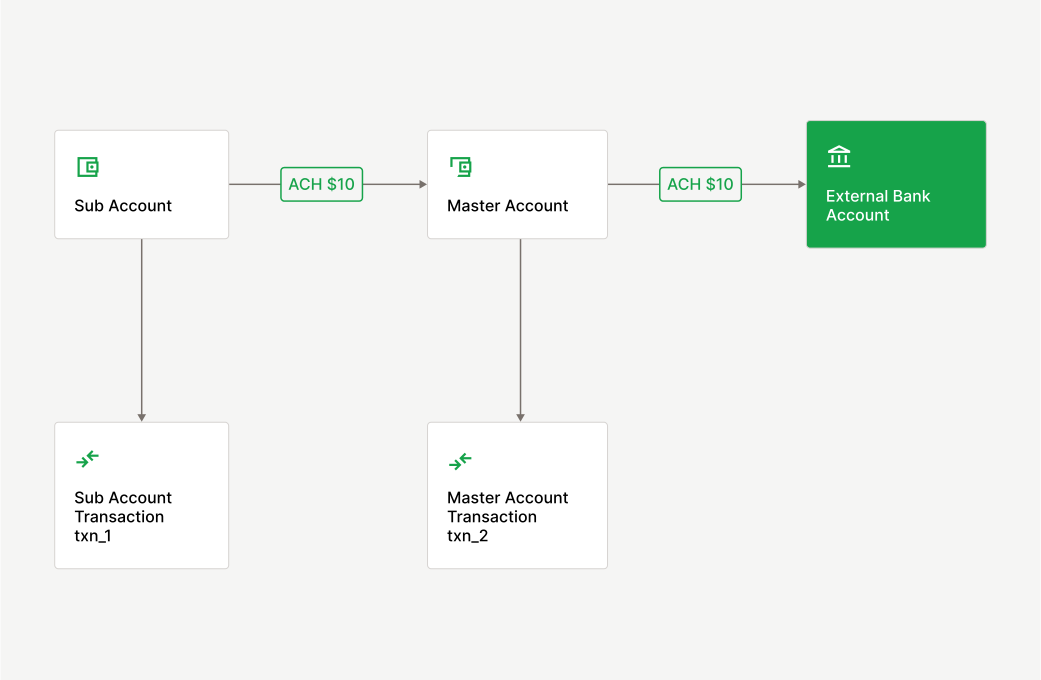
The flow of funds diagram visualizes money movement in and out of the Master and Sub Accounts. It is designed based on the FinTech's use case and must be approved by the partner bank.
## Outgoing Funds from a Sub Account (ODFI)
For example, there is an outgoing ACH debit of \$10 to an external bank account:
1. All outgoing transactions can only be originated from the Sub Account. In the example below, a \$10 ACH debit transaction originated from the Sub Account, and it results in a Sub Account transaction txn\_1
2. The outgoing transaction is subsequently debited from the Master Account and sent for clearing (via the partner bank). This results in a Master Account transaction txn\_2
3. txn\_2 reconciles txn\_1
# Flow of Funds
Source: https://docs.solidfi.com/general/flow-of-funds
A guide to Flow of Funds
The flow of funds diagram visualizes money movement in and out of the Master and Sub Accounts. It is designed based on the FinTech's use case and must be approved by the partner bank.
## Outgoing Funds from a Sub Account (ODFI)
For example, there is an outgoing ACH debit of \$10 to an external bank account:
1. All outgoing transactions can only be originated from the Sub Account. In the example below, a \$10 ACH debit transaction originated from the Sub Account, and it results in a Sub Account transaction txn\_1
2. The outgoing transaction is subsequently debited from the Master Account and sent for clearing (via the partner bank). This results in a Master Account transaction txn\_2
3. txn\_2 reconciles txn\_1
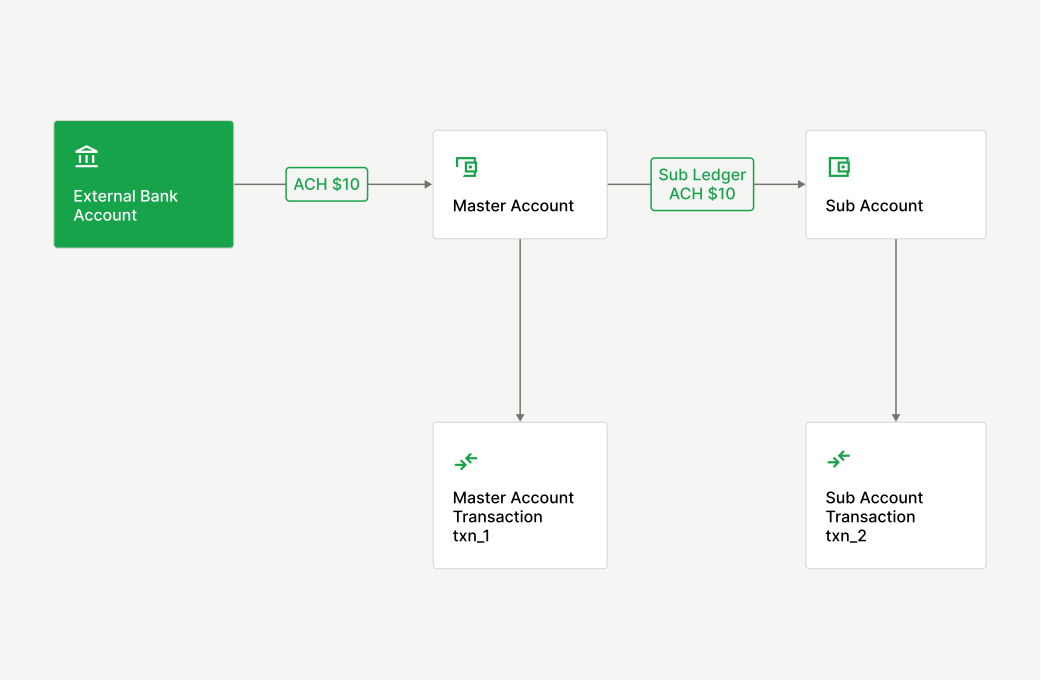
 ## Incoming Funds into a Sub Account (ODFI)
For example, there is an incoming ACH credit of \$10 from an external bank account:
1. All incoming transactions are first ledgered in the Master Account. \$10 is credited to the Master Account, and it results in a Master Account transaction txn\_1
2. The incoming transaction is subsequently credited to the Sub Account based on the beneficiary account number. This results in a Sub Account transaction txn\_2
3. txn\_2 reconciles txn\_1
## Incoming Funds into a Sub Account (ODFI)
For example, there is an incoming ACH credit of \$10 from an external bank account:
1. All incoming transactions are first ledgered in the Master Account. \$10 is credited to the Master Account, and it results in a Master Account transaction txn\_1
2. The incoming transaction is subsequently credited to the Sub Account based on the beneficiary account number. This results in a Sub Account transaction txn\_2
3. txn\_2 reconciles txn\_1
 # Introduction
Source: https://docs.solidfi.com/general/introduction
Learn about the Solid Platform
Solid's platform enables banks & companies to offer embedded banking, payments, and card products, in a safe, secure & compliant way.
Solid's platform integrates with partner banks, enabling the bank to onboard compliant FinTech partnerships. Solid makes it easy for banks to diligence, onboard, launch, and monitor FinTech programs in full adherence to the bank's risk and compliance standards.
Solid has compliance built into its platform, allowing partner banks to stay on top of every link in the compliance chain, removing the guesswork from launching a compliant FinTech program.
Here, you will learn how to start with Solid, your trusted platform for building, launching, and scaling your FinTech offering.
Get started with your FinTech journey today. If you have any questions, please [schedule a meeting](https://calendly.com/solid-sales-team/30min) with the Solid team, to discuss your FinTech use case.
# Transactions
Source: https://docs.solidfi.com/general/transactions
A guide to Transactions
A transaction records money moved into an account (credit) or out of an account (debit) on an immutable ledger. Once opened, an account can have several credit and debit transactions.
An outgoing ODFI transaction originates from a Sub Account and clears from the Master Account, creating a double entry. Each entry has a unique Transaction ID and is related to the others, leading to the transaction being reconciled.
An incoming RDFI transaction is first received in the Master Account and sub-ledged into a Sub Account, creating a double entry. Each entry has a unique Transaction ID and is related to the others, leading to the transaction being reconciled.
A transaction must be manually reconciled or reversed if it is not automatically reconciled. For more, see the [Reconciliation Guide](/accounts/reconciliation).
Depending on the payment method, each transaction will go through various statuses and finally reach the settled status. In most cases, settled is considered the terminal state, but some exceptions exist. For example, an ACH transaction can be returned after it is settled. In this case, the final status of this ACH transaction is returned.
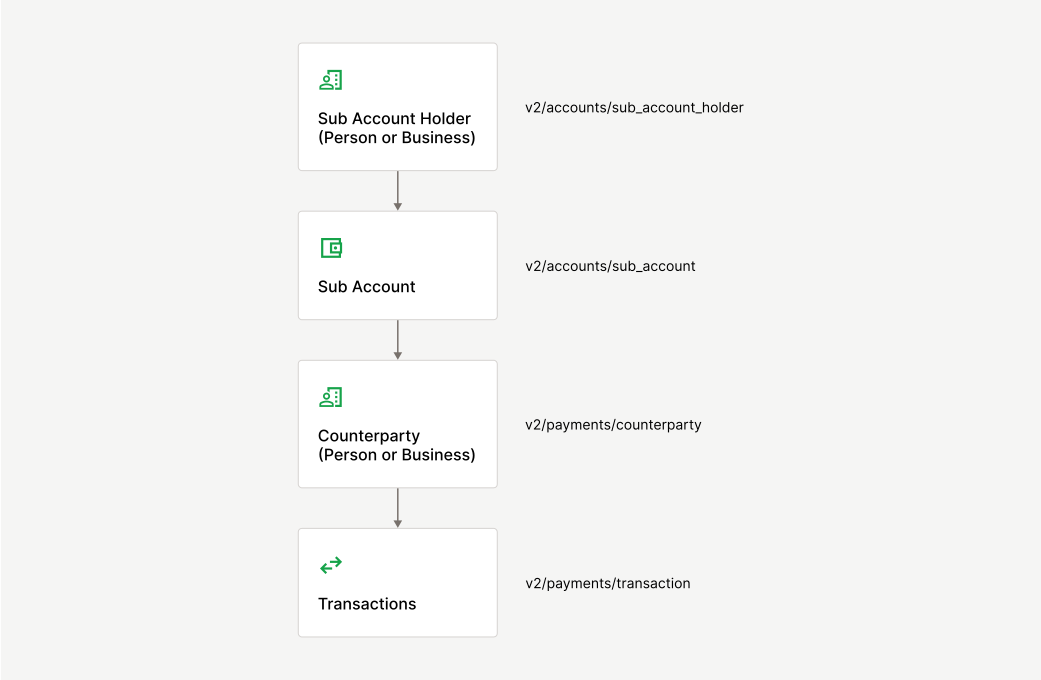
Each payment method has a dedicated API endpoint. For more, see the [Payments Guide](/payments/introduction).
# Introduction
Source: https://docs.solidfi.com/general/introduction
Learn about the Solid Platform
Solid's platform enables banks & companies to offer embedded banking, payments, and card products, in a safe, secure & compliant way.
Solid's platform integrates with partner banks, enabling the bank to onboard compliant FinTech partnerships. Solid makes it easy for banks to diligence, onboard, launch, and monitor FinTech programs in full adherence to the bank's risk and compliance standards.
Solid has compliance built into its platform, allowing partner banks to stay on top of every link in the compliance chain, removing the guesswork from launching a compliant FinTech program.
Here, you will learn how to start with Solid, your trusted platform for building, launching, and scaling your FinTech offering.
Get started with your FinTech journey today. If you have any questions, please [schedule a meeting](https://calendly.com/solid-sales-team/30min) with the Solid team, to discuss your FinTech use case.
# Transactions
Source: https://docs.solidfi.com/general/transactions
A guide to Transactions
A transaction records money moved into an account (credit) or out of an account (debit) on an immutable ledger. Once opened, an account can have several credit and debit transactions.
An outgoing ODFI transaction originates from a Sub Account and clears from the Master Account, creating a double entry. Each entry has a unique Transaction ID and is related to the others, leading to the transaction being reconciled.
An incoming RDFI transaction is first received in the Master Account and sub-ledged into a Sub Account, creating a double entry. Each entry has a unique Transaction ID and is related to the others, leading to the transaction being reconciled.
A transaction must be manually reconciled or reversed if it is not automatically reconciled. For more, see the [Reconciliation Guide](/accounts/reconciliation).
Depending on the payment method, each transaction will go through various statuses and finally reach the settled status. In most cases, settled is considered the terminal state, but some exceptions exist. For example, an ACH transaction can be returned after it is settled. In this case, the final status of this ACH transaction is returned.
Each payment method has a dedicated API endpoint. For more, see the [Payments Guide](/payments/introduction).
 # ACH
Source: https://docs.solidfi.com/payments/ach
A guide to ACH
Automated Clearing House (ACH) payment is a Push & Pull payment method supported by the Solid platform. An ACH payment occurs when the transaction originator instructs the ACH network to push money to or pull money from an external bank in the US. Unlike Intra Account transactions, ACH transactions go through multiple states in their lifecycle before the transaction finally settles:
* Originated: when an ACH transaction is created.
* Pending: when a transaction is waiting to be sent to the bank.
* Clearing: when a transaction has been sent to the bank in the NACHA file.
* Cleared: when the bank has processed the transaction and given Solid the production trace number. The trace number is a unique number used to locate the transaction if required.
* Settled: when a transaction is marked as settled to indicate the completion of the ACH transaction.
* Returned: When the originating ACH transaction is returned by the RDFI.
While ACH transactions can be somewhat complex, understanding the possible types of ACH transactions is essential. See scenatios below on originating outgoing (push/pull) and receiving incoming (push/pull) ACH transactions.
### 1. Originating ACH Transactions
Sub Account Holder 1 at Partner Bank A wants to push \$100 via ACH to Person 2 at Bank B. In this example, Sub Account Holder 1 is originating the ACH transaction at Partner Bank A, instructing the bank (via Solid's technology) to:
# ACH
Source: https://docs.solidfi.com/payments/ach
A guide to ACH
Automated Clearing House (ACH) payment is a Push & Pull payment method supported by the Solid platform. An ACH payment occurs when the transaction originator instructs the ACH network to push money to or pull money from an external bank in the US. Unlike Intra Account transactions, ACH transactions go through multiple states in their lifecycle before the transaction finally settles:
* Originated: when an ACH transaction is created.
* Pending: when a transaction is waiting to be sent to the bank.
* Clearing: when a transaction has been sent to the bank in the NACHA file.
* Cleared: when the bank has processed the transaction and given Solid the production trace number. The trace number is a unique number used to locate the transaction if required.
* Settled: when a transaction is marked as settled to indicate the completion of the ACH transaction.
* Returned: When the originating ACH transaction is returned by the RDFI.
While ACH transactions can be somewhat complex, understanding the possible types of ACH transactions is essential. See scenatios below on originating outgoing (push/pull) and receiving incoming (push/pull) ACH transactions.
### 1. Originating ACH Transactions
Sub Account Holder 1 at Partner Bank A wants to push \$100 via ACH to Person 2 at Bank B. In this example, Sub Account Holder 1 is originating the ACH transaction at Partner Bank A, instructing the bank (via Solid's technology) to:
Debit \$100 from Sub Account Holder 1's Sub Account at Partner Bank A
Credit \$100 to Person 2's Account at Bank B
Message: Outgoing
Method: ACH
Type: Push
ODFI (Originating Depository Financial Institution): Partner Bank A
RDFI (Receiving Depository Financial Institution): Bank B
Sub Account Holder 1 (Utility Company) at Partner Bank A wants to pull \$100 via ACH from Person 2 at Bank B. In this example, Sub Account Holder 1 (Utility Company) is originating the ACH transaction at Partner Bank A, instructing the bank (via Solid's technology) to:
Credit \$100 to Sub Account Holder 1's Sub Account at Partner Bank A
Debit \$100 from Person 2's Account at Bank B
Message: Outgoing
Method: ACH
Type: Pull
ODFI (Originating Depository Financial Institution): Partner Bank A
RDFI (Receiving Depository Financial Institution): Bank B
Note that ACH payments can only originate from a Sub Account, not from a Master Account.
Steps to originate an ACH payment transaction:
Via the Dashboard or the API, [Create a Counterparty](/v2/api-reference/counterparties/create-a-counterparty) with the beneficiary account details in the `ach` sub-object.
Via the Dashboard or the API, [Originate an ACH Push](/v2/api-reference/transactions/originate-an-ach-push) (where money is pushed to an external Bank Account) or [Originate an ACH Pull](/v2/api-reference/transactions/originate-an-ach-pull) (where money is pulled from an external Bank Account)
Pass the necessary parameters (originating sub\_account\_id, counterparty\_id, amount) and other optional parameters as needed.
```
{
"sub_account_id": "sub_bda1e562657c41e553104b10aad3fe70",
"counterparty_id": "ctp_8e5541c8a9e50c3af3b0daacf9175130",
"amount": "500.00",
"description": "May Rent",
"same_day": "true",
"effective_date": "2024-04-05",
"company_entry_description": "Payment",
"external_reference_id": "123-9088-2"
}
```
Congratulations, you have now successfully Originated an ACH payment transaction!
### 2. Receiving ACH Transactions
ACH Transactions received in the Sub Account with an incoming message include essential instructions such as amount, credit/debit, method, and type. Transactions are received via ACH Payment webhooks.
Person 2 at Bank B wants to push \$100 via ACH to Sub Account Holder 1 at Partner Bank A. In this example, Person 2 is originating the ACH transaction at Bank B, instructing the bank to:
Debit \$100 from Person 2's Account at Bank B
Credit \$100 to Sub Account Holder 1's Account at Partner Bank A
Message: Incoming
Method: ACH
Type: Push
ODFI (Originating Depository Financial Institution): Bank B
RDFI (Receiving Depository Financial Institution): Partner Bank A
Utility Company at Bank B wants to pull \$100 from via ACH from Sub Account Holder 1 at Partner Bank A. In this example, Utility Company is originating the ACH transaction at Bank B, instructing the bank to:
Credit \$100 to Utility Company's Account at Bank B
Debit \$100 from Sub Account Holder 1's Account at Partner Bank A
Message: Incoming
Method: ACH
Type: Pull
ODFI (Originating Depository Financial Institution): Bank B
RDFI (Receiving Depository Financial Institution): Partner Bank A
### 3. ACH Cut-off Times
Below are the cut-off times for originating ACH Credit & Debit Transactions (basically, [1a and 1b](/payments/ach#1-originating-ach-transactions)) on banking days.
* 5:15 am PT
* 8:15 am PT
* 12:15 pm PT
* 4:15 pm PT
For same-day ACH, transfers must be sent before the 12:15 pm cut-off. Anything sent after that will be treated as a next-day ACH.
If you are receiving ACH Credit and debit Transactions (basically, [2a and 2b](/payments/ach#2-receiving-ach-transactions)), we will credit the funds to and debit from Master Account / Sub Account as soon as the RDFI receives the ACH instruction.
### 4. ACH Returns & Reversals
Next, we dive into the different scenarios surrounding ACH Returns and Reversals.
But first, let's understand the financial institutions (FIs) involved in an ACH transaction:
* ODFI (Originating Depository Financial Institution)
* RDFI (Receiving Depository Financial Institution)
Most banks can do both, meaning they can act as ODFI (that originates the ACH transaction on behalf of their Account Holder) and RDFI (that receives the ACH transaction intended for their Account Holder).
**ACH Returns**
ACH Return is filed by the RDFI to return an ACH payment that was previously originated by an ODFI. ACH Returns are filed in the following scenarios:
If the bank account at the RDFI does not have sufficient funds to cover the debited amount, an automatic ACH Return is filed by the RDFI and sent to the Automated Clearing House (ACH), which then notifies the ODFI.
In [2b](/payments/ach#2-receiving-ach-transactions), if Sub Account Holder 1's account at Partner Bank A does not have sufficient funds to cover the debited amount, the RDFI (Partner Bank A) files an automatic ACH return.
If the account holder at the RDFI requests a return to the payment due to an unauthorized ACH Debit transaction, an ACH Return is filed by the RDFI and sent to the Automated Clearing House (ACH), which then notifies the ODFI. Solid must receive the request to file the return within 24 hours.
In [2b](/payments/ach#2-receiving-ach-transactions), if Sub Account Holder 1's account at Partner Bank A does not have sufficient funds to cover the debited amount, the RDFI (Partner Bank A) files an automatic ACH return.
If the bank account at the RDFI is either invalid, closed, or does not exist, an automatic ACH Return is filed by the RDFI and sent to the Automated Clearing House (ACH), which then notifies the ODFI.
In [2b](/payments/ach#2-receiving-ach-transactions), if Sub Account Holder 1's account at Partner Bank A is either invalid, closed or does not exist, the RDFI (Partner Bank A) files an automatic ACH return.
See a list of [ACH Return Codes](https://uploads-ssl.webflow.com/66633a8deaa98cd86b9f0eb3/66980f78467135c36869e194_ACH-Return-Codes.pdf).
**ACH Reversals**
The ODFI files an ACH Reversal to reverse the ACH payment that the ODFI previously originated, most likely due to an error (such as an incorrect amount, duplicate transaction, or incorrect account). ACH Reversals are filed in the following scenarios:
If an incorrect dollar amount was credited to or debited from another bank account, the ODFI can file an attempt to reverse the transaction and send it to the Automated Clearing House (ACH), which then notifies the RDFI. Solid must receive the request to file the return within 24 hours.
In [1a](/payments/ach#1-originating-ach-transactions), if Person 2's Account at Bank B was credited with an incorrect dollar amount, then Partner Bank A (the ODFI) can file an attempt to reverse the transaction.
If a duplicate transaction of the same dollar amount was credited to or debited from another bank account, the ODFI can file an attempt to reverse the transaction and send it to the Automated Clearing House (ACH), which then notifies the RDFI. Solid must receive the request to file the return within 24 hours.
In [1a](/payments/ach#1-originating-ach-transactions), if Person 2's Account at Bank B was credited with a duplicate transaction of the same dollar amount, then Partner Bank A (the ODFI) can file an attempt to reverse the transaction.
If the ODFI sends a payment to an incorrect account, the ODFI can file an attempt to reverse the transaction and send it to the Automated Clearing House (ACH), which notifies the RDFI. Solid must receive the request to file the return within 24 hours.
In [1a](/payments/ach#1-originating-ach-transactions), if Person 2's Account at Bank B was incorrect, then Partner Bank A (the ODFI) can file an attempt to reverse the transaction.
ACH Reversals are not guaranteed to be honored by the RDFI, as the funds have already been debited or credited and may not exist in the account at the RDFI. The RDFI has 48 hours to respond to the ACH Reversal request.
# Check
Source: https://docs.solidfi.com/payments/check
A guide to Checks
Check is a paper document that delivers funds from one account to another (usually at different banks), via the Check Clearing House.
The Check has information such as Payor, Payee, Date, Amount, Memo, and Signature.
* The Payor writes the information on the Check issued by the Payor's Bank.
* The Payee deposits the Check that is issued by the Payee's Bank.
Using the information on the Check (such as the Payor's Account Number and Routing Number and amount), the Check authorizes the Payee's Bank (ODFI) to pull the funds from the Payor's Bank (RDFI) account and deposit them into the Payee's Bank Account.
Solid's Payment capabilities support both –
* issuing and mailing a physical check ([Originate a Check Send](/v2/api-reference/transactions/originate-a-check-send)) on behalf of the Payor
* depositing a check ([Originate a Check Deposit](/v2/api-reference/transactions/originate-a-check-deposit))
# Controls
Source: https://docs.solidfi.com/payments/controls
A guide to Payment Controls
Depending on the payment use case, a wide range of controls can be set not just based on frequency but also at the form factor levels, each in full adherence to the bank's risk and compliance standards.
Controls and limits can be applied to both incoming and outgoing transactions. If any transaction (incoming or outgoing) violates the set controls or exceeds the set limits, the transaction will be auto-declined, and clients will be promptly notified via a webhook.
Here are some examples of controls available in payments:
* Banks can configure clients' daily limits for outgoing domestic wire transactions.
* Banks can configure clients' monthly limits for incoming ACH pull transactions.
Banks can configure the client's settlement delay for all ACH pull transactions originated. Solid will release the funds only after the settlement wait time.
* Banks can disable international wire for a particular client.
* Clients can enable RTA to process incoming ACH pull transactions.
* Based on the ACH details, clients can decide whether to process or return the transaction.
Payment controls and limits are set during the onboarding process.
# Intra Account
Source: https://docs.solidfi.com/payments/intra-account
A guide to Intra Account (On-Us)
Intra Account is a Push & Pull payment method supported by the Solid platform. Money movement between Sub Accounts are basically Intra Account (On-Us) transactions.
Steps to originate an Intra Account (On-Us) payment transaction:
Via the Dashboard or the API, [Create a Counterparty](/v2/api-reference/counterparties/create-a-counterparty) with the beneficiary account details in the `intra_account` sub-object.
Via the Dashboard or the API, [Originate an Intra Account Push](/v2/api-reference/transactions/originate-an-intra-account-push) (where money is pushed to another Sub Account) or [Originate an Intra Account Pull](/v2/api-reference/transactions/originate-an-intra-account-pull) (where money is pulled from another Sub Account)
Pass the necessary parameters (originating sub\_account\_id, counterparty\_id, amount) and other optional parameters as needed.
```
{
"sub_account_id": "sub_bda1e562657c41e553104b10aad3fe70",
"counterparty_id": "ctp_8e5541c8a9e50c3af3b0daacf9175130",
"amount": "4570.00",
"description": "May Salary",
"external_reference_id": "123-9088-2"
}
```
Congratulations, you have now successfully Originated an Intra Account (On-Us) transaction!
**Settlement Time**: Instant
# Introduction
Source: https://docs.solidfi.com/payments/introduction
An introduction to Payments
You can use Solid's payments stack to move money in and out of a Sub Account.
If money is moved out of a Sub Account, it results in a Debit Transaction.
If money is moved into a Sub Account, it results in a Credit Transaction.
Any money movement transaction (a credit or a debit) from in and out of the Sub Account creates a Transaction object.
Solid provides you with various payment methods to move money in and out of the Sub Account:
* [Intra Account (On-us)](/payments/intra-account)
* [ACH](/payments/ach)
* [WireCheck](/payments/wire)
* [Check](/payments/check)
* [Debit Card Push & Pull](/payments/debit-card)
* FedNow (coming soon)
Solid provides you with status through the lifecycle of each payment transaction (available in the Transaction object):
* Originated
* Pending
* Clearing
* Cleared
* Settled
* Canceled
* In Review
* Returned
* Reversed
* Received
* Declined
* Refunded
### Originating Transactions
Transactions originated from the Sub Account with an Outgoing message, which includes important instructions such as amount, credit/debit, method, and type. Transactions are originated via Payment APIs.
Note that payments can only originate from a Sub Account, not from a Master Account.
### Receiving Transactions
Transactions received in the Sub Account with an Incoming message, which includes important instructions such as amount, credit/debit, method, and type. Transactions are received via Payment webhooks.
Every transaction is ledgered in both the Master Account and the Sub Account (that originated or received the transaction).
# Wire
Source: https://docs.solidfi.com/payments/wire
A guide to Wires
Wires are direct transfers between banks. International wires (and in some cases, domestic wires) usually have intermediary/correspondent banks, which serve as third-party banks that help process and settle transactions. Unlike Intra Account transactions, Wire transactions go through multiple states in their lifecycle before the transaction finally settles:
* Originated: when a transaction is created.
* Pending: when a transaction is waiting to be sent to the bank.
* Clearing: when a transaction has been sent to the bank in the FedWire/MT103 file or via an API.
* Cleared: when the bank has processed the transaction and given Solid the IMAD/OMAD number. The IMAD/OMAD number is a unique number used to locate the transaction if required.
* Settled: when a transaction is marked as settled to indicate the completion of the wire transaction.
* Returned: when the originated wire transaction is returned by the RDFI.
### 1. Domestic Wire
Steps to originate a Domestic Wire transaction:
Via the Dashboard or the API, [Create a Counterparty](/v2/api-reference/counterparties/create-a-counterparty) with the beneficiary account details in the `domestic_wire` sub-object.
Via the Dashboard or the API, [Originate a Domestic Wire](/v2/api-reference/transactions/originate-a-domestic-wire)
Pass the necessary parameters (originating sub\_account\_id, counterparty\_id, amount) and other optional parameters as needed.
```
{
"sub_account_id": "sub_bda1e562657c41e553104b10aad3fe70",
"counterparty_id": "ctp_8e5541c8a9e50c3af3b0daacf9175130",
"amount": "25000.00",
"description": "Invoice 123-9088-2 ",
"external_reference_id": "123-9088-2"
}
```
Congratulations, you have now successfully Originated a Domestic Wire transaction!
### 2. International Wire
Steps to originate an International Wire transaction:
Via the Dashboard or the API, [Create a Counterparty](/v2/api-reference/counterparties/create-a-counterparty) with the beneficiary account details in the `international_wire` sub-object.
Via the Dashboard or the API, [Originate an International Wire](/v2/api-reference/transactions/originate-an-international-wire)
Pass the necessary parameters (originating sub\_account\_id, counterparty\_id, amount) and other optional parameters as needed.
```
{
"sub_account_id": "sub_bda1e562657c41e553104b10aad3fe70",
"counterparty_id": "ctp_8e5541c8a9e50c3af3b0daacf9175130",
"amount": "250000.00",
"description": "Offshore Dev 123-9088-2 ",
"external_reference_id": "123-9088-2"
}
```
Congratulations, you have now successfully Originated an International Wire transaction!
### 3. Wire Cut-off Times
**Originating Wires (both Domestic and International)**: The cut-off time for originating Wires on the same day is 12 pm PT.
**Receiving Wires (both Domestic and International)**: Incoming Wires received by the partner bank before 4 pm PT are made available on the same day.
# Create an Attachment
Source: https://docs.solidfi.com/v2/api-reference/attachments/create-an-attachment
post /v2/attachment
Create an Attachment
# Delete an Attachment
Source: https://docs.solidfi.com/v2/api-reference/attachments/delete-an-attachment
delete /v2/attachment/{attachment_id}
Delete an Attachment
# List all Attachments
Source: https://docs.solidfi.com/v2/api-reference/attachments/list-all-attachments
get /v2/attachment
List all Attachments
# Retrieve an Attachment
Source: https://docs.solidfi.com/v2/api-reference/attachments/retrieve-an-attachment
get /v2/attachment/{attachment_id}
Retrieve an Attachment
# Create a Card Holder
Source: https://docs.solidfi.com/v2/api-reference/card-holders/create-a-card-holder
post /v2/issuing/card_holder
Create a Card Holder
# List all Card Holders
Source: https://docs.solidfi.com/v2/api-reference/card-holders/list-all-card-holders
get /v2/issuing/card_holder
List all Card Holders
# Retrieve a Card Holder
Source: https://docs.solidfi.com/v2/api-reference/card-holders/retrieve-a-card-holder
get /v2/issuing/card_holder/{card_holder_id}
Retrieve a Card Holder
# Update a Card Holder
Source: https://docs.solidfi.com/v2/api-reference/card-holders/update-a-card-holder
patch /v2/issuing/card_holder/{card_holder_id}
Update a Card Holder
# Activate a Card
Source: https://docs.solidfi.com/v2/api-reference/cards/activate-a-card
patch /v2/issuing/card/{card_id}/activate
Activate a Card
# Create a Card
Source: https://docs.solidfi.com/v2/api-reference/cards/create-a-card
post /v2/issuing/card
Create a Card
# List all Cards
Source: https://docs.solidfi.com/v2/api-reference/cards/list-all-cards
get /v2/issuing/card
List all Cards
# Provision a Card
Source: https://docs.solidfi.com/v2/api-reference/cards/provision-a-card
post /v2/issuing/card/{card_id}/provision
Provision a Card on Apple Pay, Google Pay and Samsung Pay
# Reissue a Card
Source: https://docs.solidfi.com/v2/api-reference/cards/reissue-a-card
post /v2/issuing/card/{card_id}/replace
Reissue a Card
# Retrieve a Card
Source: https://docs.solidfi.com/v2/api-reference/cards/retrieve-a-card
get /v2/issuing/card/{card_id}
Retrieve a Card
# Set a PIN
Source: https://docs.solidfi.com/v2/api-reference/cards/set-a-pin
post /v2/issuing/card/{card_id}/set_pin_token
Setting a PIN is a two-step process
1. Get a one-time PIN token
2. Use the PIN token in Solid's SDK to set a PIN. Solid will provide access to the SDK during the implementation.
# Show a Card
Source: https://docs.solidfi.com/v2/api-reference/cards/show-a-card
post /v2/issuing/card/{card_id}/show_token
Displaying unredacted card number and CVV is a two-step process
1. Get a one-time show token
2. Use the show token in Solid's SDK to show the unredacted card number and CVV. Solid will provide access to the SDK during the implementation.
# Update a Card
Source: https://docs.solidfi.com/v2/api-reference/cards/update-a-card
patch /v2/issuing/card/{card_id}
Update a Card
# Create a Counterparty
Source: https://docs.solidfi.com/v2/api-reference/counterparties/create-a-counterparty
post /v2/payments/counterparty
Create a Counterparty
# List all Counterparties
Source: https://docs.solidfi.com/v2/api-reference/counterparties/list-all-counterparties
get /v2/payments/counterparty
List all Counterparties
# Retrieve a Counterparty
Source: https://docs.solidfi.com/v2/api-reference/counterparties/retrieve-a-counterparty
get /v2/payments/counterparty/{counterparty_id}
Retrieve a Counterparty
# Retrieve Bank Info
Source: https://docs.solidfi.com/v2/api-reference/counterparties/retrieve-bank-info
get /v2/payments/counterparty/bank
Retrieve Bank Info
# Update a Counterparty
Source: https://docs.solidfi.com/v2/api-reference/counterparties/update-a-counterparty
patch /v2/payments/counterparty/{counterparty_id}
Update a Counterparty
# Attachments
Source: https://docs.solidfi.com/v2/api-reference/getting-started/attachments
Solid Platform supports attachments
The Solid Platform support includes attachments on all the resources.
While adding an attachment, pass the resource id to which the attachment belongs. In response, you will receive a public URL, which is available for 5 minutes that you need to push the attachment to (supports standard mime types).
```json
{
"id": "att_a8d2b191fa0e960d8e49a4bfd320e07b",
"reference_id": "ctp_8e5541c8a9e50c3af3b0daacf9175130",
"label": "formation",
"url": "http://bucket.s3-website-us-east-1.amazonaws.com",
"created_at": "2024-04-04T11:06:00Z"
}
```
API reference to add, retrieve, list and delete attachments are [here](/v2/api-reference/attachments/create-an-attachment).
You can add multiple attachments to a resource.
# Authentication
Source: https://docs.solidfi.com/v2/api-reference/getting-started/authentication
API key based authentication
All requests to Solid's platform must be made over HTTPS and authenticated via API key. You need to pass the API key in the header. You can view and manage your API keys in the Solid Dashboard. API keys must be kept secret. They should not be in your client-side code or checked into your application's code.
As an example:
1. Proceed to Create a Sub Account Holder with the API key. Set the api-key in the header.
2. Once you create a Sub Account Holder, you will receive the Sub Account Holder ID in the response.
```bash EXAMPLE
curl --request POST \
--url https://api.sandbox.solidfi.com/v2/accounts/sub_account_holder \
--header 'Content-Type: application/json' \
--header 'api-key: ' \
--data '{
"master_account_id": "mas_743fa071316bc6beaf5dddfd05f49c30",
"type": "person",
"person": {
"first_name": "Jane",
"last_name": "Doe",
"id_type": "ssn",
"id_number": "223902234",
"date_of_birth": "1974-01-25",
"phone": "+19418405843",
"email": "jane.doe@gmail.com",
"address": {
"line1": "123 Main St",
"line2": "",
"city": "New York",
"state": "NY",
"country": "US",
"postal_code": "10001"
}
},
"verification": {
"status": "pass",
"method": "persona",
"url": "https://withpersona.com/verify?inquiry-id=inq_p1LgZj3wp5xWMk5XUhWAMrgV"
}
}'
```
IP Whitelisting is not required in Sandbox environment, but mandatory in Prod.
To further secure your data in Production, the Solid platform only accepts API requests if the originating IP address is whitelisted in the Prod Dashboard. If the IP address is mismatched, the request is discarded.
# Environments
Source: https://docs.solidfi.com/v2/api-reference/getting-started/environments
Sandbox and Prod environments
For ease of development, Solid provides separate Sandbox and Production environments. The dashboards for both can be accessed [here](https://dashboard.sandbox.solidfi.com/login).
### Sandbox
> API Base URL: [https://api.sandbox.solidfi.com](https://api.sandbox.solidfi.com)
### Prod
> API Base URL: [https://api.prod.solidfi.com](https://api.prod.solidfi.com)
Any activity in the Sandbox environment is not sent to the bank and does not affect your Prod instance.
# Idempotency
Source: https://docs.solidfi.com/v2/api-reference/getting-started/idempotency
Solid Platform supports idempotency
The Solid Platform supports idempotency to help prevent you from accidentally calling the same API call twice.
An idempotency key uniquely identifies each API request. You must pass the idempotency key in the header (idempotency-key) so that the Solid platform can identify the API request. This key should be unique, preferably an internal UUID you store on your database.
```bash Example
curl --request POST \
--url https://api.sandbox.solidfi.com/v2/accounts/sub_account_holder \
--header 'Content-Type: application/json' \
--header 'api-key: ' \
--header 'idempotency-key: 9c91bbca-67a0-11ec-90d6-0242ac120003' \
```
Idempotent requests are optional, as in, you can make API calls without an idempotency key. All Solid API POST (Create calls) and PATCH (Update calls) support idempotency. An idempotency key sent for any other requests (GET, DELETE, etc.) will be ignored and not be saved.
Idempotency can be helpful if you instruct Solid to move money or issue a card.
#### Please note:
* All API responses are cached with the idempotency key (if sent in the header) irrespective of status code, and reuse of the same key will return the cached response (only exception here is rate limit error)
* When the program gets 409 status code: EC\_QLDB\_OCC\_ERROR\_RETRY" and sysMessage": "qldb occ error please retry", try with a new idempotency key
* Solid platform will respond with the original response object if you issue a new request with the same idempotency key
* In case of a 429 rate limit error, you can reuse the idempotency key. For other error codes, reusing the idempotency key will get the response of the previous request
* Idempotency keys expire after 24 hours
# Introduction
Source: https://docs.solidfi.com/v2/api-reference/getting-started/introduction
An introduction to the Solid APIs
Solid APIs are REST-based and built around JSON-encoded requests and responses with standard authentication method, response and error codes.
To get started,
1. Solid team will set you up with a Pre-provisioned Sandbox account.
2. Using the [Dashboard](https://dashboard.sandbox.solidfi.com/login) in the Sandbox environment, you'll create an API key.
You'll need Postman or a similar tool to run the APIs.
You always start with a Sandbox. Once your FinTech program is ready to be onboarded with the partner bank, you'll receive a pre-provisioned Production access.
Here are the ten steps we will guide you through. After completing these steps, you will have originated a sub account, created cards and counterparties, made a payment and viewed the transactions.
[Authenticate](/v2/api-reference/getting-started/authentication) into your Sandbox account (using the API key in the Sandbox environment).
[Create a Sub Account Holder](/v2/api-reference/sub-account-holders/create-a-sub-account-holder) under the Master Account.
For the Sub Account Holder, [create a Sub Account](/v2/api-reference/sub-accounts/create-a-sub-account).
Fund the Sub Account using Incoming ACH (see how to [Simulate](/v2/api-reference/getting-started/simulation))
[Create a Counterparty](/v2/api-reference/counterparties/create-a-counterparty) under the Sub Account.
[Originate an ACH payment](/v2/api-reference/transactions/originate-an-ach-push) to the Counterparty.
[Create a Card Holder](/v2/api-reference/card-holders/create-a-card-holder) under the Sub Account.
[Issue a Card](/v2/api-reference/cards/create-a-card) to the Card Holder.
Spend the issued card (see how to [Simulate](/v2/api-reference/getting-started/simulation))
View [transactions](/v2/api-reference/transactions/list-all-transactions) in the Sub Account ledger
Congratulations, you have now successfully originated a sub account, created cards and counterparties, made a payment and viewed the transactions!
# Metadata
Source: https://docs.solidfi.com/v2/api-reference/getting-started/metadata
Solid Platform supports metadata
The Solid Platform support includes metadata on all the resources.
Metadata takes the form of free-form key-value pairs. You may send metadata when you create an object (POST) and when updating the object (PATCH). If you would like to remove metadata that is already on an object, you can unset it by passing in the key-value pair with an empty string, like this:
```json
{
"key": ""
}
```
Current limitations:
* Max of 20 keys for any single metadata object
* Max of 4KB for any single metadata object
```bash EXAMPLE
curl --request POST \
--url https://api.sandbox.solidfi.com/v2/accounts/sub_account_holder \
--header 'Content-Type: application/json' \
--header 'api-key: ' \
--data '{
"master_account_id": "mas_743fa071316bc6beaf5dddfd05f49c30",
"type": "person",
"person": {
"first_name": "Jane",
"last_name": "Doe",
"id_type": "ssn",
"id_number": "223902234",
"date_of_birth": "1974-01-25",
"phone": "+19418405843",
"email": "jane.doe@gmail.com",
"address": {
"line1": "123 Main St",
"line2": "",
"city": "New York",
"state": "NY",
"country": "US",
"postal_code": "10001"
}
},
"verification": {
"status": "pass",
"method": "persona",
"url": "https://withpersona.com/verify?inquiry-id=inq_p1LgZj3wp5xWMk5XUhWAMrgV"
},
"metadata": {
"user_type": "pro"
}
}
```
# Pagination
Source: https://docs.solidfi.com/v2/api-reference/getting-started/pagination
Solid Platform support cursor pagination
When calling any of the List All APIs on the Solid platform, you can control the pagination of the response using the following filters. For other filters, see the documentation for the relevant List All API.
All the list APIs return a has\_more boolean flag in the response to indicate whether there are more records to iterate.
| Filter (Type) | Type |
| ------------------------ | -------------------------------------------------------------------------------------------------------------------------------------------------------------------------------------------------------------------------------------------------------------------------------------------------------------------------------------------------------------------------------- |
| limit (int) | number of records to return (default = 25, max = 100) |
| starting\_after (string) | A cursor for use in pagination. starting\_after is an ID that defines your place in the list. For instance, if you make a list request and receive 50 records, ending with Y2xpXzAxOGY4NjEzMDEyYjdlNTFiOTZjNmVlYWJiNmRiZTky, your subsequent call can include starting\_after=Y2xpXzAxOGY4NjEzMDEyYjdlNTFiOTZjNmVlYWJiNmRiZTky in order to fetch the next page of the list. |
| ending\_before (string) | A cursor for use in pagination. ending\_before is an ID that defines your place in the list. For instance, if you make a list request and receive 50 records, starting with Y2xpXzAxOGY4NjEzMDEyYjdlNTFiOTZjNmVlYWJiNmRiZTky, your subsequent call can include ending\_before= Y2xpXzAxOGY4NjEzMDEyYjdlNTFiOTZjNmVlYWJiNmRiZTky in order to fetch the previous page of the list. |
# Rate Limiting
Source: https://docs.solidfi.com/v2/api-reference/getting-started/rate-limiting
Solid Platform enforces rate limiting
Rate limiting protects APIs from excessive use and thereby limits their availability. To ensure all your programs can reliably use the Solid APIs and other services, we rate-limit access to those services to ensure no program, its end users, or malicious hackers abuse access. When a program's traffic exceeds its allocated rate limit, an HTTP 429 status code (Too Many Requests) is returned.
There are two rate-limiting points affecting the Solid platform:
1. Solid's AWS CloudFront rate limits
Solid's cloud infrastructure limits all incoming traffic, including a Program's incoming Solid API HTTP traffic, on a per-client-IP-address basis to 1000 HTTP requests per rolling 5-minute window.
2. Solid API backend rate limits
In the Sandbox environment, Solid default rate limits a program's traffic (across all client IP addresses) to:
* 50 read operations per second
* 50 write operations per second
In the Prod environment, Solid default rate limits a program's traffic (across all client IP addresses) to:
* 100 read operations per second
* 100 write operations per second
As a developer, when your application hits the rate limits, it will receive a 429 response. However, you must take a proactive approach by throttling your traffic before hitting the rate limits in the first place.
Solid may reduce limits or increase limits to enable high-traffic FinTech apps.
If you need a different limit, could be lower or higher, please let your account manager know, and the Solid team will review the request.
IPs whose traffic persistently exceeds this limit by a large margin may be throttled further.
# Simulation
Source: https://docs.solidfi.com/v2/api-reference/getting-started/simulation
Solid Platform simulates transactions
Solid platform lets you simulate payments to test your integration in the sandbox environment. The platform currently supports simulating ACH payment methods and spending on issued cards.
Currently, the platform supports:
* [Simulating an Incoming ACH Push](/v2/api-reference/simulation/simulate-an-incoming-ach-push)
* [Simulating an Incoming ACH Pull](/v2/api-reference/simulation/simulate-an-incoming-ach-pull)
* [Simulating a Card Auth Transaction](/v2/api-reference/simulation/simulate-an-auth-transaction)
You should not stress-test your integration in the sandbox environment, as the rate limits would block the requests.
# List all Master Accounts
Source: https://docs.solidfi.com/v2/api-reference/master-accounts/list-all-master-accounts
get /v2/accounts/master_account
List all Master Accounts
# Retrieve a Master Account
Source: https://docs.solidfi.com/v2/api-reference/master-accounts/retrieve-a-master-account
get /v2/accounts/master_account/{master_account_id}
Retrieve a Master Account
# Simulate an Auth Transaction
Source: https://docs.solidfi.com/v2/api-reference/simulation/simulate-an-auth-transaction
post /v2/simulate/incoming/card_issuing
Simulate an Auth Transaction
# Simulate an Incoming ACH Pull
Source: https://docs.solidfi.com/v2/api-reference/simulation/simulate-an-incoming-ach-pull
post /v2/simulate/incoming/ach/pull
Simulate an Incoming ACH Pull
# Simulate an Incoming ACH Push
Source: https://docs.solidfi.com/v2/api-reference/simulation/simulate-an-incoming-ach-push
post /v2/simulate/incoming/ach/push
Simulate an Incoming ACH Push
# Simulate an Incoming Domestic Wire Push
Source: https://docs.solidfi.com/v2/api-reference/simulation/simulate-an-incoming-domestic-wire-push
post /v2/simulate/incoming/domestic_wire
Simulate an Incoming Domestic Wire Push
# Simulate an Incoming International Wire Push
Source: https://docs.solidfi.com/v2/api-reference/simulation/simulate-an-incoming-international-wire-push
post /v2/simulate/incoming/international_wire
Simulate an Incoming International Wire Push
# Create a Sub Account Holder
Source: https://docs.solidfi.com/v2/api-reference/sub-account-holders/create-a-sub-account-holder
post /v2/accounts/sub_account_holder
Create a Sub Account Holder
# List all Sub Account Holders
Source: https://docs.solidfi.com/v2/api-reference/sub-account-holders/list-all-sub-account-holders
get /v2/accounts/sub_account_holder
List all Sub Account Holders
# Retrieve a Sub Account Holder
Source: https://docs.solidfi.com/v2/api-reference/sub-account-holders/retrieve-a-sub-account-holder
get /v2/accounts/sub_account_holder/{sub_account_holder_id}
Retrieve a Sub Account Holder
# Submit an IDV
Source: https://docs.solidfi.com/v2/api-reference/sub-account-holders/submit-a-idv
post /v2/accounts/sub_account_holder/{sub_account_holder_id}/idv
Submit an IDV
# Submit a KYB
Source: https://docs.solidfi.com/v2/api-reference/sub-account-holders/submit-a-kyb
post /v2/accounts/sub_account_holder/{sub_account_holder_id}/kyb
Submit a KYB
# Submit a KYC
Source: https://docs.solidfi.com/v2/api-reference/sub-account-holders/submit-a-kyc
post /v2/accounts/sub_account_holder/{sub_account_holder_id}/kyc
Submit a KYC
# Update a Sub Account Holder
Source: https://docs.solidfi.com/v2/api-reference/sub-account-holders/update-a-sub-account-holder
patch /v2/accounts/sub_account_holder/{sub_account_holder_id}
Update a Sub Account Holder
# Create a Sub Account
Source: https://docs.solidfi.com/v2/api-reference/sub-accounts/create-a-sub-account
post /v2/accounts/sub_account
Create a Sub Account
# List all Sub Accounts
Source: https://docs.solidfi.com/v2/api-reference/sub-accounts/list-all-sub-accounts
get /v2/accounts/sub_account
List all Sub Accounts
# Retrieve a Sub Account
Source: https://docs.solidfi.com/v2/api-reference/sub-accounts/retrieve-a-sub-account
get /v2/accounts/sub_account/{sub_account_id}
Retrieve a Sub Account
# Update a Sub Account
Source: https://docs.solidfi.com/v2/api-reference/sub-accounts/update-a-sub-account
patch /v2/accounts/sub_account/{sub_account_id}
Update a Sub Account
# List all Transactions
Source: https://docs.solidfi.com/v2/api-reference/transactions/list-all-transactions
get /v2/payments/transaction
List all Transactions
# Originate a Check Deposit
Source: https://docs.solidfi.com/v2/api-reference/transactions/originate-a-check-deposit
post /v2/payments/check/deposit
Originate a Check Deposit
# Originate a Check Send
Source: https://docs.solidfi.com/v2/api-reference/transactions/originate-a-check-send
post /v2/payments/check/send
Originate a Check Send
# Originate a Debit Card Pull
Source: https://docs.solidfi.com/v2/api-reference/transactions/originate-a-debit-card-pull
post /v2/payments/debitcard/pull
Originate a Debit Card Pull
# Originate a Debit Card Push
Source: https://docs.solidfi.com/v2/api-reference/transactions/originate-a-debit-card-push
post /v2/payments/debitcard/push
Originate a Debit Card Push
# Originate a Domestic Wire
Source: https://docs.solidfi.com/v2/api-reference/transactions/originate-a-domestic-wire
post /v2/payments/domestic_wire/push
Originate a Domestic Wire
# Originate a FedNow Push
Source: https://docs.solidfi.com/v2/api-reference/transactions/originate-a-fednow-push
post /v2/payments/fednow/push
Originate a FedNow Push
# Originate an ACH Pull
Source: https://docs.solidfi.com/v2/api-reference/transactions/originate-an-ach-pull
post /v2/payments/ach/pull
Originate an ACH Pull
# Originate an ACH Push
Source: https://docs.solidfi.com/v2/api-reference/transactions/originate-an-ach-push
post /v2/payments/ach/push
Originate an ACH Push
# Originate an International Wire
Source: https://docs.solidfi.com/v2/api-reference/transactions/originate-an-international-wire
post /v2/payments/international_wire/push
Originate an International Wire
# Originate an Intra Account Pull
Source: https://docs.solidfi.com/v2/api-reference/transactions/originate-an-intra-account-pull
post /v2/payments/intra_account/pull
Originate an Intra Account Pull
# Originate an Intra Account Push
Source: https://docs.solidfi.com/v2/api-reference/transactions/originate-an-intra-account-push
post /v2/payments/intra_account/push
Originate an Intra Account Push
# Originate an RTP Push
Source: https://docs.solidfi.com/v2/api-reference/transactions/originate-an-rtp-push
post /v2/payments/rtp/push
Originate an RTP Push
# Retrieve a Transaction
Source: https://docs.solidfi.com/v2/api-reference/transactions/retrieve-a-transaction
get /v2/payments/transaction/{transaction_id}
Retrieve a Transaction
# Sub Ledger a Transaction
Source: https://docs.solidfi.com/v2/api-reference/transactions/sub-ledger-a-transaction
post /v2/payments/transaction
Sub Ledger a Transaction
# Update a Transaction
Source: https://docs.solidfi.com/v2/api-reference/transactions/update-a-transaction
patch /v2/payments/transaction/{transaction_id}
Update a Transaction
# Create a Webhook
Source: https://docs.solidfi.com/v2/api-reference/webhooks/create-a-webhook
post /v2/webhook
Create a Webhook
# Delete a Webhook
Source: https://docs.solidfi.com/v2/api-reference/webhooks/delete-a-webhook
delete /v2/webhook/{webhook_id}
Delete a Webhook
# List all Webhooks
Source: https://docs.solidfi.com/v2/api-reference/webhooks/list-all-webhook
get /v2/webhook
List all Webhooks
# List all Webhook Events
Source: https://docs.solidfi.com/v2/api-reference/webhooks/list-all-webhook-events
get /v2/webhook/events
List all Webhook Events
# Retrieve a Webhook
Source: https://docs.solidfi.com/v2/api-reference/webhooks/retrieve-a-webhook
get /v2/webhook/{webhook_id}
Retrieve a Webhook